Two things decide whether the images in your email look good: their width in pixels, and their file size. Too narrow, and they look blurry on modern phones and laptops. Too heavy, and the email loads slowly.
This guide gives practical numbers, checked against Klaviyo's and Mailchimp's own help pages, and measured with the tools on this site.
The short answer
- Find your email's width: usually 600 px (Klaviyo's default and Mailchimp's older builder) or 660 px (Mailchimp's new builder).
- Export full-width images at twice that width, such as 1200 px or 1320 px, so they stay sharp on high-resolution screens.
- Keep each image well under 1 MB. Run photos through the image compressor; in our test a 1200 px banner came out at 142 KB.
- Use JPG for photos and PNG for text, logos and flat colours.
What Klaviyo and Mailchimp recommend
| Klaviyo | Mailchimp | |
|---|---|---|
| Email width | 600 px by default | 660 px (new builder), 600 px (legacy builder) |
| Image width | 600–1000 px; full-width images under 2000 px tall | 660–1320 px (new builder), 600–1200 px (legacy) |
| File size | Maximum 10 MB; 1 MB or smaller recommended | 1 MB maximum recommended |
| Formats | JPEG, PNG and GIF; WebP is converted to PNG | PNG, JPG or GIF |
Sources, checked on 19 October 2026: Klaviyo's email image best practices and template width, and Mailchimp's image recommendations. Platforms update their advice, so check these pages if a number matters.
Width: why twice the email width
Most phones, and many laptops, have high-resolution screens. They use two (or more) real pixels for every pixel of the email's layout. A 600 px image in a 600 px email is stretched to fill 1200 real pixels, and it looks soft.
Give the screen an image twice as wide, 1200 px, and the email builder shows it at 600 px. Klaviyo's help describes exactly this: insert an image twice the size you need, then make it smaller in the template. Mailchimp's range, up to 1320 px for a 660 px email, allows for the same.
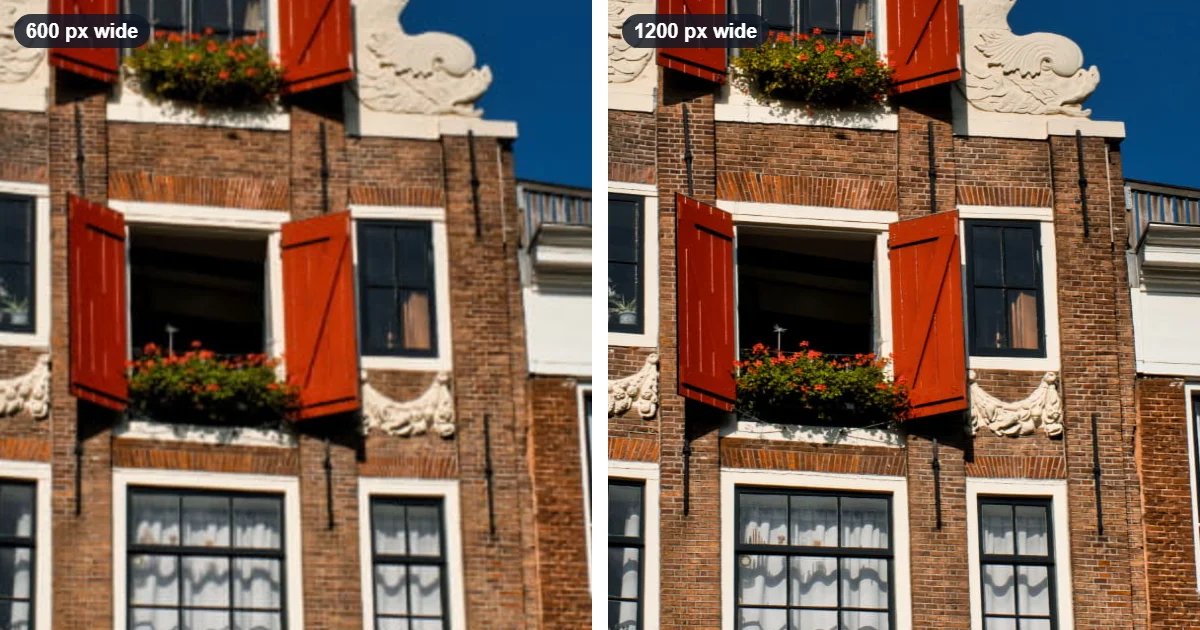
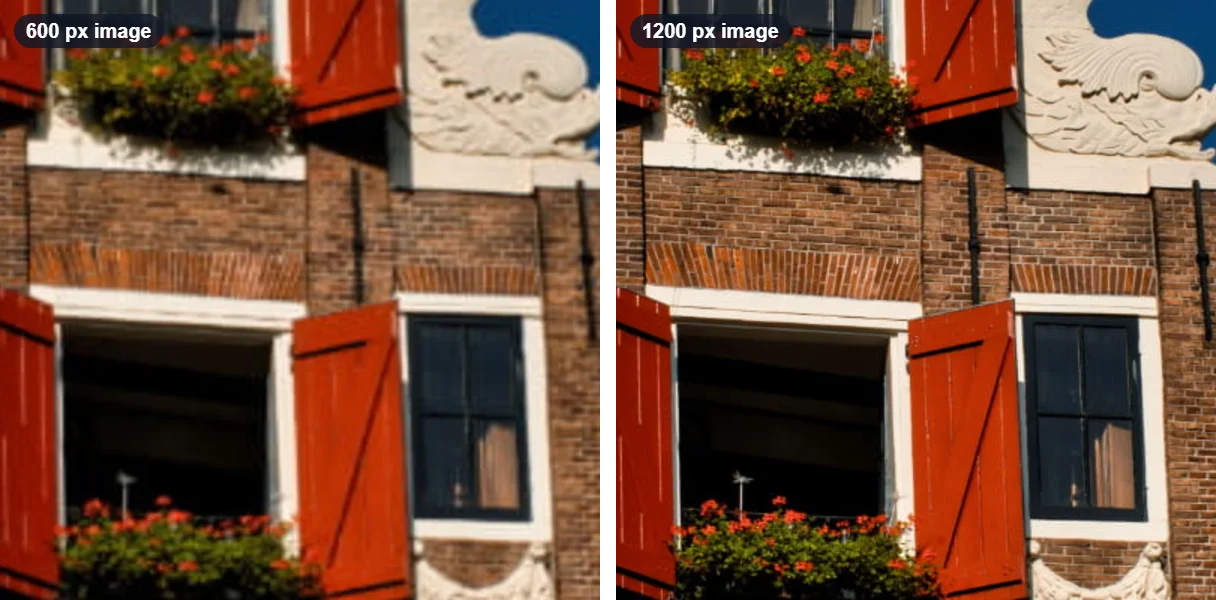
Here's the same banner on a high-resolution screen, at 600 px and at 1200 px wide:
Narrower images need less. An image in a two-column row is shown at about half the email's width, so about 600 px is enough for it. And if your builder adds padding around an image, subtract it: Mailchimp's example is a header with 10 px of padding on each side, which should be 580 px wide instead of 600.
File size: keep each image light
Both platforms recommend images of 1 MB or less, and lighter is better: every image has to download before the reader sees it.
We made a 1200 × 800 banner from a 2.68 MB photo with the image resizer, then ran it through the image compressor at its default Balanced setting:
| Banner | From the resizer | After the compressor |
|---|---|---|
| 600 × 400 | 59 KB | 39 KB |
| 1200 × 800 | 215 KB | 142 KB |
The sharp 1200 px version is still far below 1 MB. Over the whole email it adds up, though, so compress every photo. For a hard limit, the compressor can aim for a maximum size: see how to compress an image to a specific size.
Tall designs: split them into blocks
Klaviyo suggests keeping full-width images under 2000 px tall. A whole campaign designed as one tall image is usually far taller than that, and it can't link different parts to different pages.
Split it into blocks, such as a header, hero and product rows, with the email image splitter. Our guide how to split a long email design into image blocks walks through it step by step.
Formats for email
- JPG for photos: the smallest files.
- PNG for text, logos, screenshots and flat colours: sharp edges, and it keeps transparency.
- GIF for simple animations.
- Not WebP: Mailchimp's list of formats doesn't include it, and Klaviyo converts WebP uploads to PNG. Convert WebP files to JPG or PNG first with the image converter.
Don't forget alt text
Klaviyo's help says to always add alt text, and notes that some inboxes, including Outlook and Apple Mail, may hide images until the reader allows them. Describe what each image says or shows, especially offers and buttons, so the email still makes sense without the pictures.
Checklist
- Email width: 600 px or 660 px? Subtract any padding.
- Full-width images: twice that width (1200 or 1320 px). Two-column images: about half.
- Photos as JPG, text and logos as PNG, never WebP.
- Every image well under 1 MB; compress photos.
- Tall designs split into blocks under 2000 px tall.
- Alt text on every image.