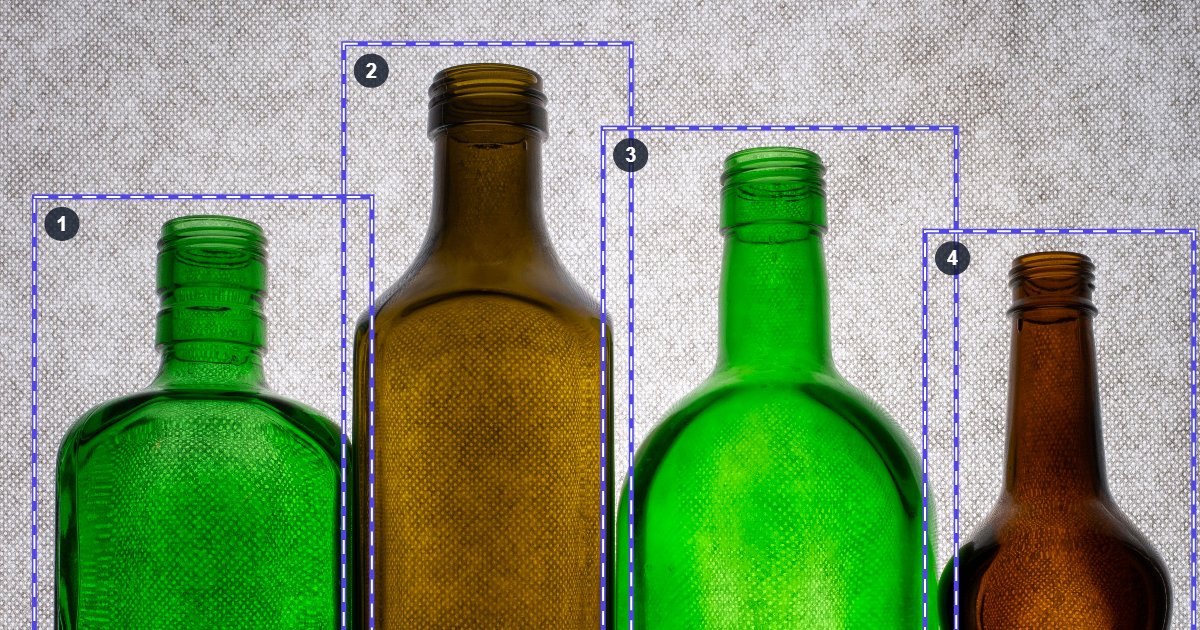
Most crop tools give you one crop at a time: crop, save, open the picture again, crop the next part. That's slow when one picture holds several things you need, such as four products in one shot, a logo and a banner in one screenshot, or a profile picture and a thumbnail from the same photo.
The image crop tool lets you draw all the crops on the picture at once and download them together, each at its exact size. It runs in your browser, so your picture isn't uploaded.
The 30-second answer
- Open the image splitter, add your picture, and choose Crops.
- Drag on the picture to draw a crop. Repeat for every part you need.
- Click Download all as ZIP. Each crop is its own file.
Step 1: switch to Crops
Add your picture and click Crops at the top of the side panel. If you only draw crops, the whole picture is left out of the download automatically; a link under the download button adds it back if you want it.
Step 2: draw your crops
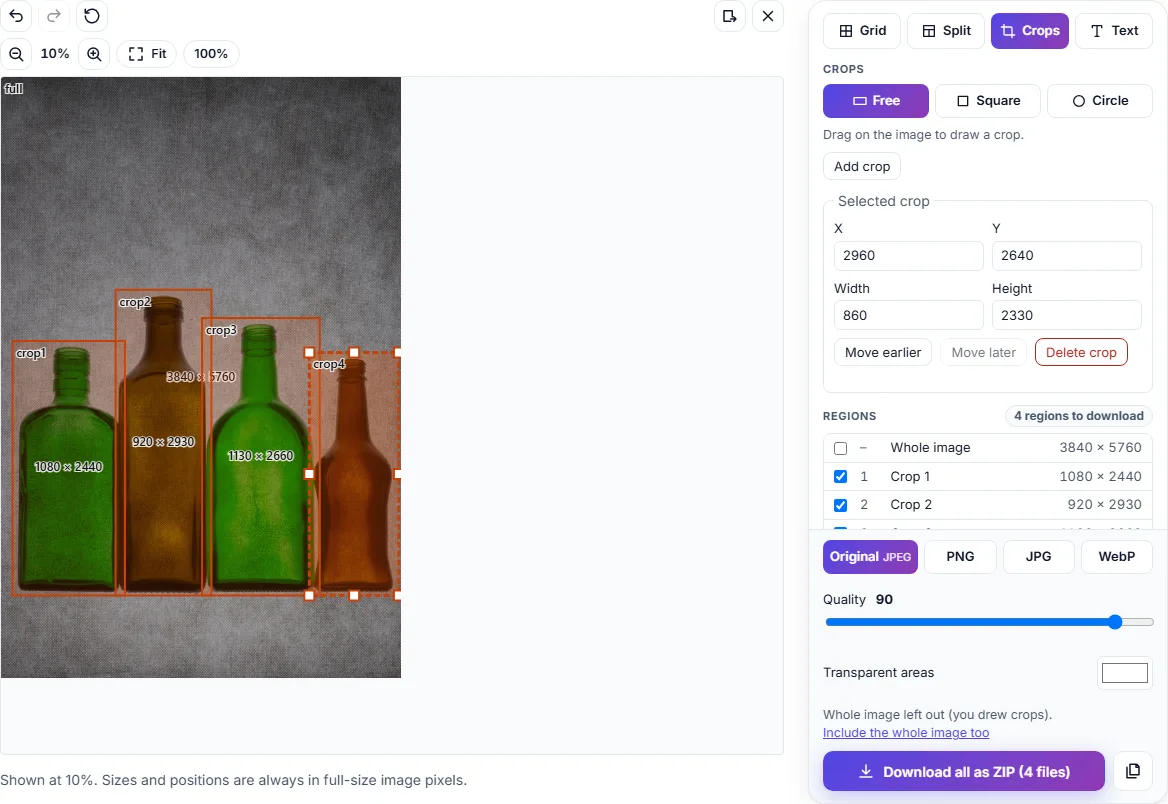
Drag on the picture to draw a crop. On a touch screen, tap Add crop and then drag it into place.
Draw as many as you need. Crops can overlap: in our example, four bottles stand close together, so each crop takes in a sliver of its neighbour. That's fine, because every crop is cut from the original picture separately.
Step 3: move and fine-tune
- Move a crop by dragging it.
- Resize it with the handles on its corners and edges.
- Nudge the selected crop with the arrow keys: 1 pixel at a time, or 10 with Shift.
- Delete it with the Delete key or the Delete crop button.
- Undo any change with the undo button or Ctrl+Z.
Step 4: exact positions by typing
For pixel-perfect edges, type them. The selected crop's X and Y (its top-left corner) and its Width and Height are in the side panel. That's handy when you need, say, several product pictures of exactly the same size: type the same width and height for each.
Squares and circles
At the top of the Crops panel you can choose Free, Square or Circle:
- Square keeps the width and height equal while you draw, drag the handles or type a size.
- Circle is a square crop that's saved round, with transparent corners: ideal for profile pictures.
Each new crop takes the shape you chose last. With a crop selected, choosing a shape changes that crop.
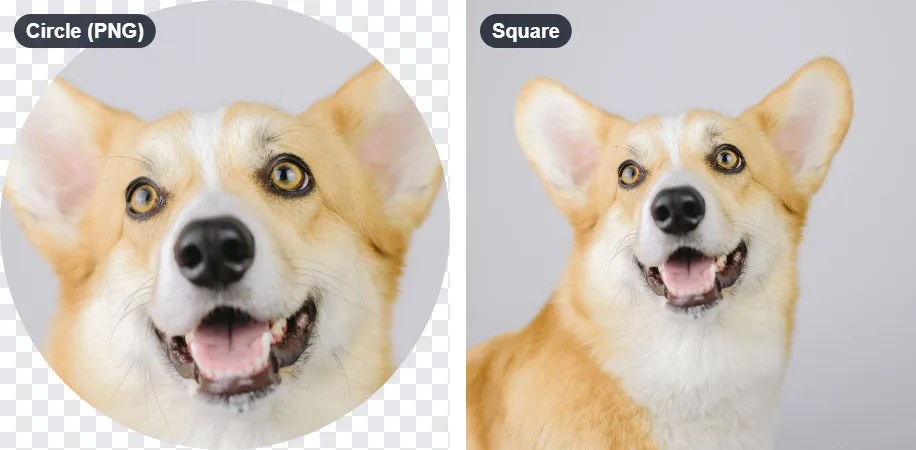
JPG can't have transparent corners. So when you have circle crops and the format is Original on a JPG photo, the files are saved as PNG, and the page tells you why. If you choose JPG yourself, the corners get the colour under Transparent areas.
Step 5: order and file names
Files are numbered in the order of your crops: the first crop you drew is 001. To change the order, select a crop and click Move earlier or Move later.
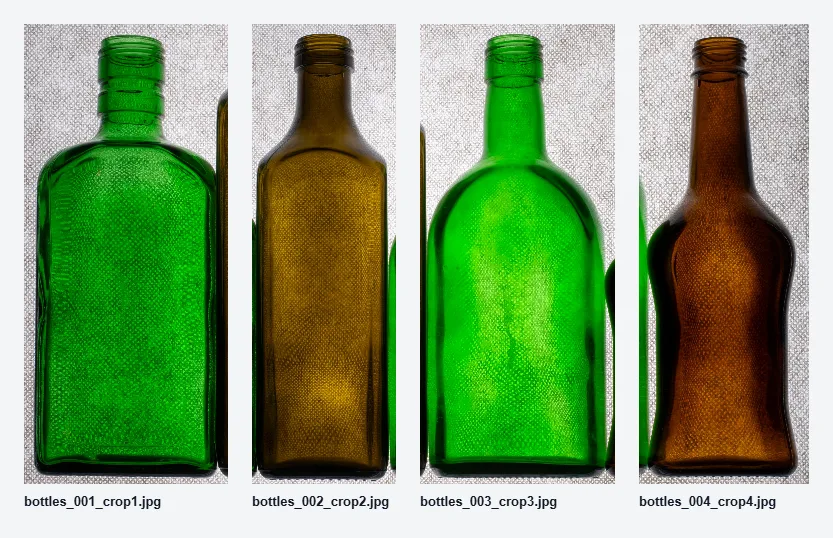
Each file name starts with your picture's name, then the number and the crop: in our example bottles_001_crop1.jpg to bottles_004_crop4.jpg. Under Files & options you can change the beginning of the name, or switch to numbers only.
You can also name each crop in the Regions list. The names appear in the optional manifest.csv, a spreadsheet of every file with its size and position, which you can add under Files & options.
Step 6: download
Click Download all as ZIP, or the button next to it for separate files. Each crop is saved at its full size, with no scaling:
You can download up to 1,000 files at once. For the same layout on similar pictures, such as next week's product sheet, save it under Your layouts (in Presets and saved layouts) and apply it to the new picture.
Crops and a grid together
Crops work alongside the grid. For example, split a banner into three columns with the Grid, and also draw a crop of the logo: the download then has the three columns plus the logo. To split a whole picture into equal pieces instead, see how to split an image into equal parts.
Common questions
Does cropping lower the quality? No. Each crop is copied pixel for pixel from the original. JPG files are saved again at the quality you choose (90 by default); PNG keeps every pixel exactly.
Is there a limit on crops? Up to 1,000 files in one download.
Can I crop a circle for a profile picture? Yes. Choose Circle, draw it over the face, and download it as PNG to keep the corners transparent.
Is my picture uploaded? No. Everything happens in your browser, on your own device.
Summary
- Choose Crops, then drag to draw as many crops as you need. They may overlap.
- Fine-tune by dragging, with the arrow keys, or by typing exact numbers.
- Pick Square or Circle for equal sides or a round profile picture.
- Set the order with Move earlier and Move later, then download everything as one ZIP.