You right-click a picture on a website, choose Save image as, and get a file ending in .webp. Then a photo editor, a printing service or an upload form refuses it.
Nothing is wrong with the file. It's just a newer format that not every app accepts yet. This article explains why it happens and how to get a JPG instead.
The 30-second answer
- Open WebP to JPG.
- Add your WebP files, up to 20 at once.
- Click Convert, then download the JPGs one by one or together as a ZIP.
It runs in your browser, so the pictures aren't uploaded anywhere.
Why websites use WebP
WebP stores the same picture in a smaller file than JPG. Smaller files mean faster pages, so many websites send their images as WebP.
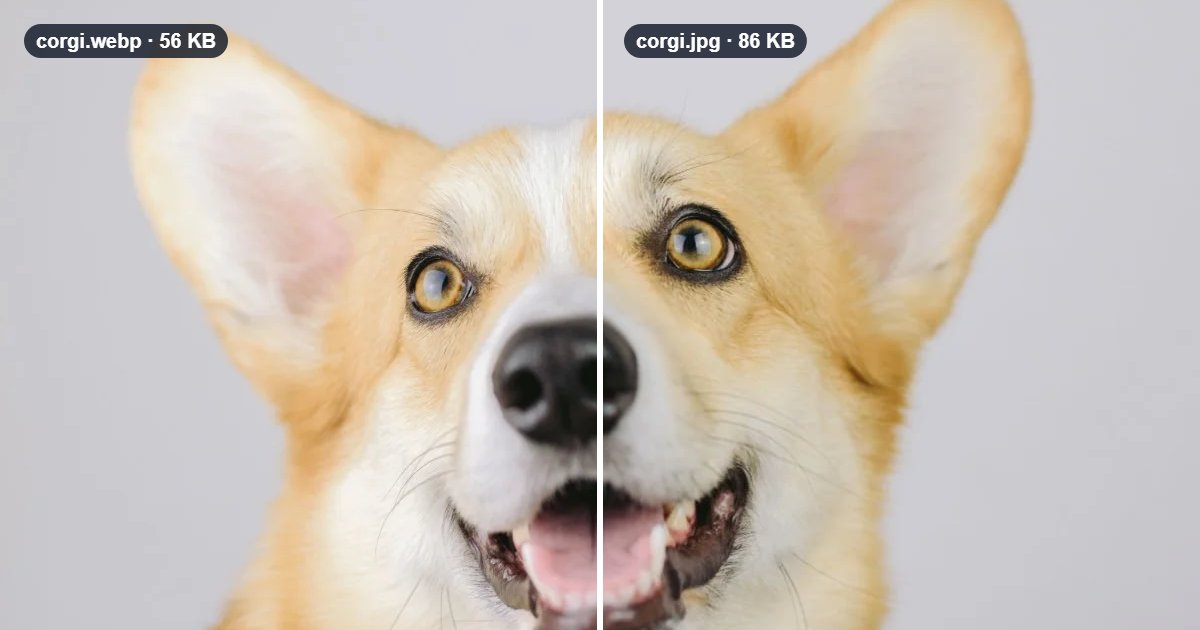
In our test, the same 1200 × 1798 photo was 56 KB as WebP and 86 KB as JPG at our converter's default quality, and they look the same:
| The same photo saved as | File size |
|---|---|
| WebP (like a file saved from a website) | 56 KB |
| JPG, quality 85 (the default) | 86 KB |
| JPG, quality 95 | 187 KB |
| PNG | 677 KB |
Why "Save image as" gives you a WebP
Many websites decide which format to send based on your browser. Your browser tells the site which formats it can show; if WebP is one of them, the site sends WebP, because it's smaller. Sometimes the address of the picture even ends in .jpg, and you still get a WebP.
So the website isn't keeping the JPG from you. Your browser simply received a WebP, and that's what it saves.
Converting WebP to JPG
The WebP to JPG page has JPG already selected:
- Add your images. Drag them onto the page or click to choose. You can add up to 20 at once; PNG and GIF work too.
- Check the quality (optional). The default, 85, looks the same as the original at normal viewing size. Higher numbers make bigger files.
- Click Convert. Each file gets the same name with .jpg at the end, and you see its real file size before you download.
For other directions, such as JPG to WebP or WebP to PNG, use the image converter.
What happens to transparent areas
Some WebP images have transparent areas, such as logos or cut-out products. JPG can't store transparency, so those areas need a colour.
The converter fills them with white by default. To choose another colour, use Transparent areas, which appears when an image has transparency:
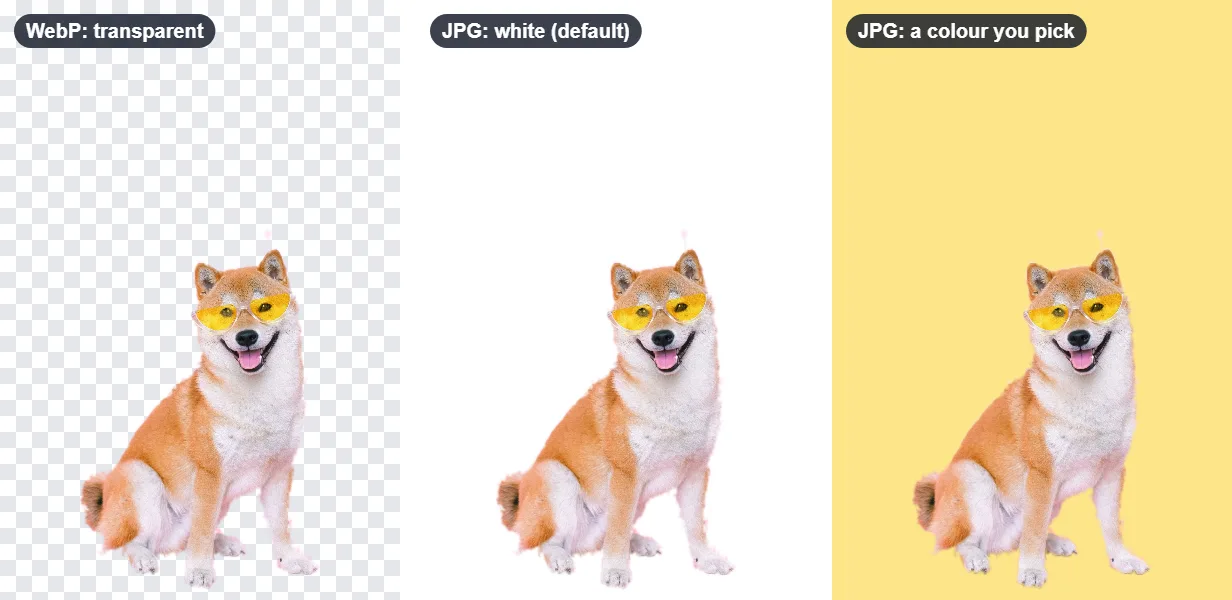
Need to keep the transparency? Convert to PNG instead. PNG keeps it, but as the table shows, photos are much bigger as PNG.
Quality and file size
Converting can't add detail that the WebP doesn't have. It can only keep what's there, and JPG compresses the picture once more when it's saved.
- Quality 85 (the default) is a good balance: the change is very hard to see.
- Quality 95 keeps a little more, but in our test the file was more than twice as big.
- Need a small file, for example under 100 KB for a form? Use the image compressor, which can aim for a maximum file size. More in how to compress an image to a specific size.
Common questions
Is WebP bad? No. It's a good format, and all modern browsers can show it. It only causes trouble with apps and forms that don't accept it yet.
Why is my JPG bigger than the WebP? Because WebP compresses better. At the same visible quality, JPG needs more bytes. That's expected and nothing is wrong.
Can I convert many files at once? Yes, up to 20 at a time. Download them together as a ZIP.
Are my pictures uploaded? No. The conversion happens in your browser, on your own device.
Which format should I use for my own pictures? It depends on the picture and where it's going. See PNG, JPG or WebP: which format to use.
Summary
- Websites send WebP because the files are smaller, and your browser saves what it was sent.
- To get a JPG, use WebP to JPG: add the files, click Convert, download.
- Transparent areas become white, or a colour you pick; choose PNG to keep transparency.
- Quality 85 is usually right. For a size limit, use the compressor afterwards.