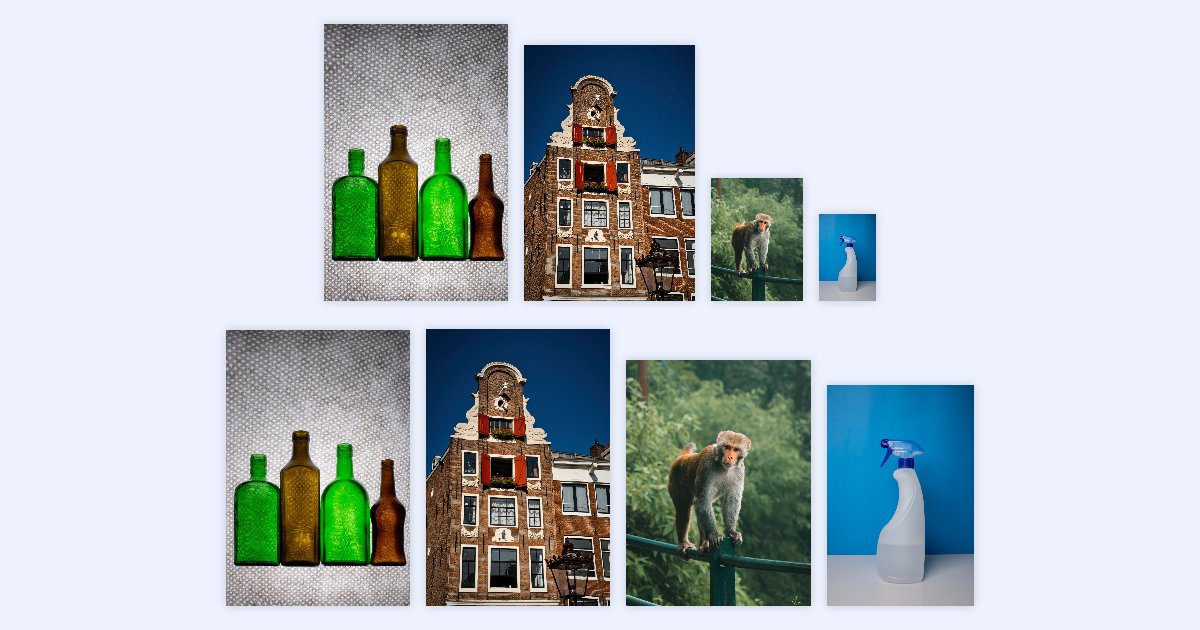
Product photos from a supplier, pictures from three different phones, screenshots for a help page: they rarely come in the same size. A website, a shop or a document usually wants them all the same width, and often under a file-size limit as well.
Doing that one image at a time is slow. This guide shows how to do all of them at once with the image resizer, which runs in your browser: the photos aren't uploaded anywhere. The sizes below come from a real test with four photos.
The 30-second answer
- Open the image resizer and add up to 20 images.
- Type the width you want, for example 1500, in Width. Leave the chain button locked so each photo keeps its own proportions.
- If the files must stay under a size, pick a Max file size, such as 500 KB.
- Click Resize 4 images (the button counts your images), check the results, then click Download all to get a ZIP.
The example: four photos, four sizes
We started with four photos that have nothing in common:
- a photo of bottles, 3840 × 5760 px and 4.5 MB
- a photo of a canal house, 3537 × 5318 px and 2.7 MB
- a photo of a monkey, 1913 × 2551 px and 394 KB
- a smaller photo of a spray bottle, 1200 × 1800 px and 134 KB
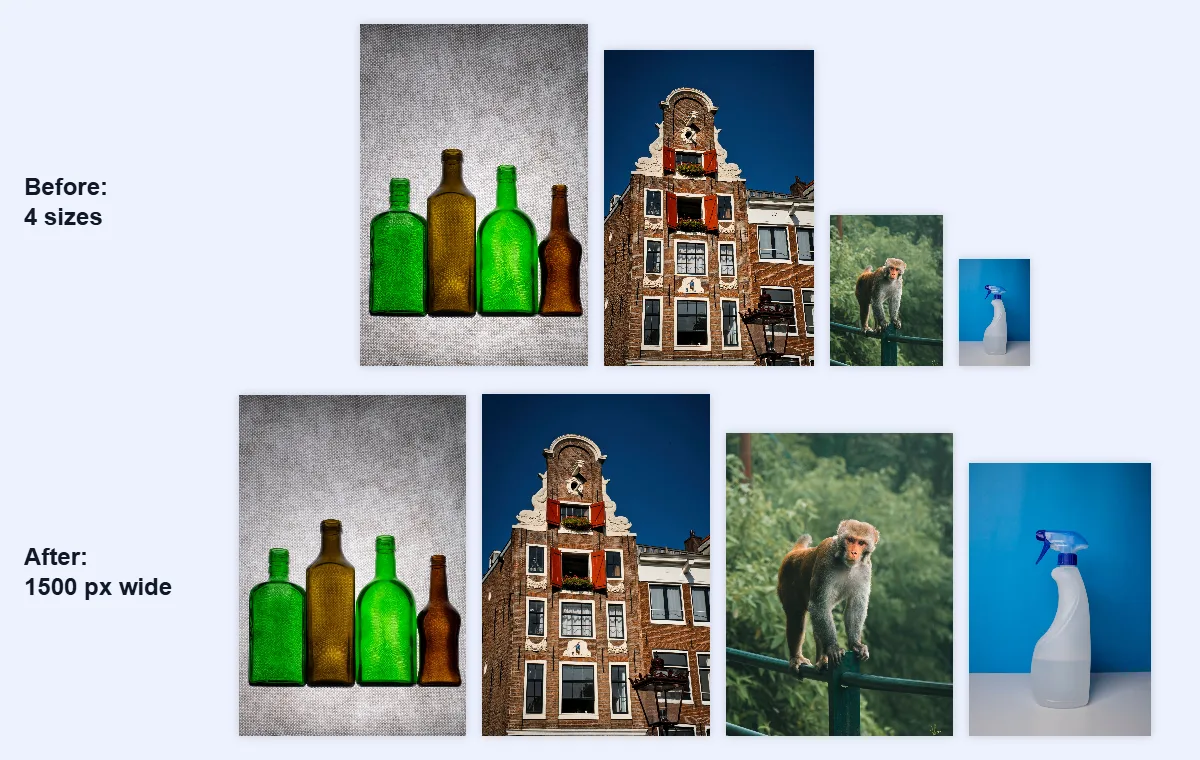
The goal: every photo 1500 px wide, each file under 500 KB.
Step 1: add the images
Drop the photos onto the resizer, or click Select images. You can add up to 20 at once, in JPG, PNG, WebP or GIF. Each one shows its current size in pixels and its file size, so you can see straight away which ones are the big ones.
Step 2: set the width and keep the proportions
Under Resize by, keep Pixels selected and type 1500 in Width.
The chain button between Width and Height is locked by default. That means you only set one side: the other is worked out from each photo's own shape. A tall photo gets a tall height, a wide one a short height, and nothing is squashed. In our test the bottles became 1500 × 2250 px and the canal house 1500 × 2255 px, because their shapes are slightly different.
If you need every image at exactly the same width and height, for example square product thumbnails, unlock the chain and enter both numbers. Then choose Crop to fill to trim the edges evenly instead of stretching the picture.
Step 3: set a maximum file size
Many websites, shops and forms limit how big each file can be. Under Max file size, choose one of the sizes (100 KB, 200 KB, 500 KB, 1 MB, 2 MB or 5 MB), or type your own in MB.
The resizer then gives each image the highest quality that still fits. Big, detailed photos are reduced the most; photos that already fit keep the full quality you set under Max quality. That's better than one quality setting for every file, which would either leave some files too big or make others look worse than they need to.
Step 4: resize and check the results
Click the resize button. Each image shows its new size, its new file size and how much smaller it got. Here's what we measured:
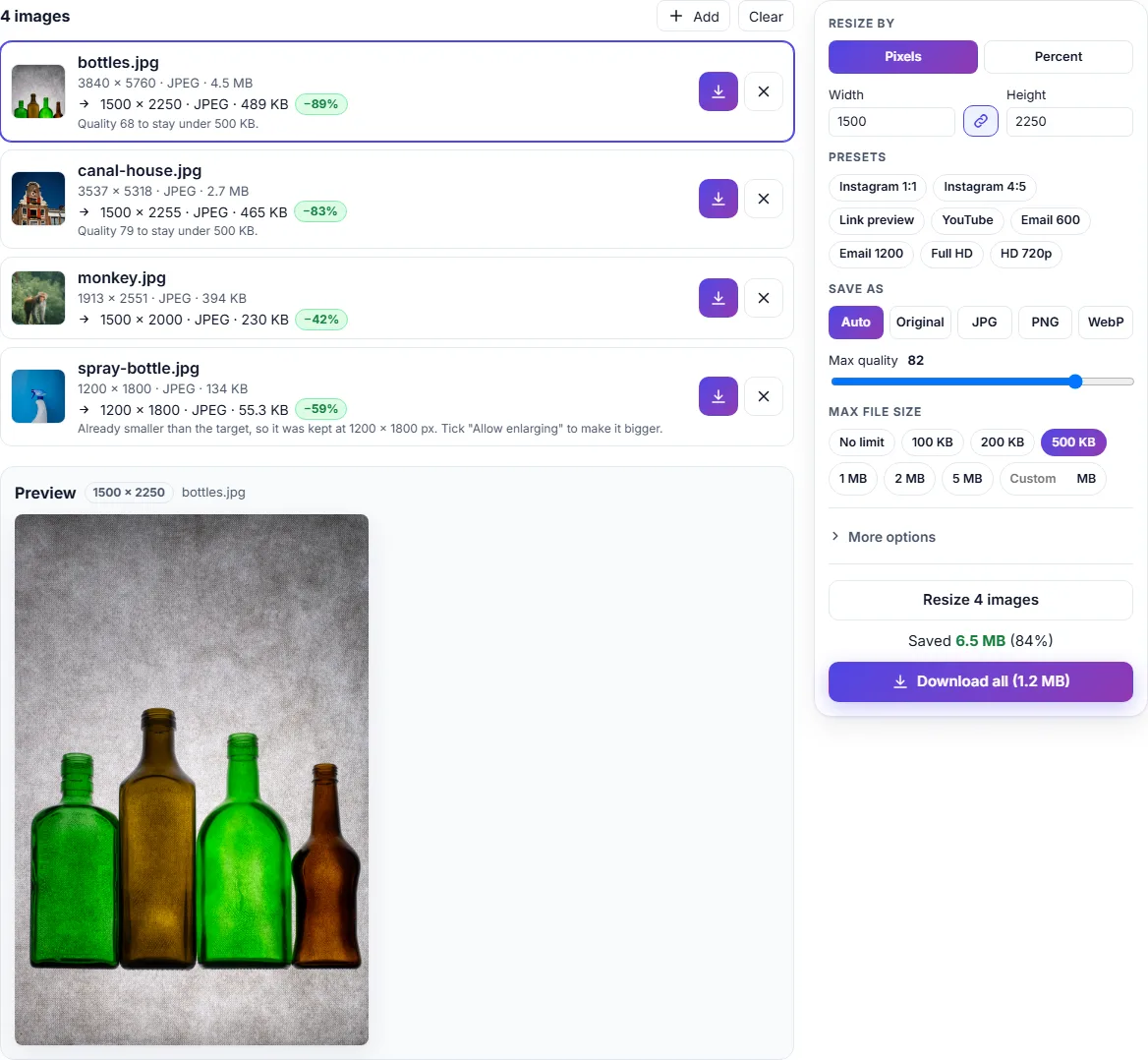
| Photo | Before | After | File size | Note |
|---|---|---|---|---|
| bottles.jpg | 3840 × 5760, 4.5 MB | 1500 × 2250 | 489 KB (−89%) | Quality 68 to stay under 500 KB |
| canal-house.jpg | 3537 × 5318, 2.7 MB | 1500 × 2255 | 465 KB (−83%) | Quality 79 to stay under 500 KB |
| monkey.jpg | 1913 × 2551, 394 KB | 1500 × 2000 | 230 KB (−42%) | Fitted without lowering the quality |
| spray-bottle.jpg | 1200 × 1800, 134 KB | 1200 × 1800 | 55.3 KB (−59%) | Already smaller than 1500 px, so kept at its size |
Two things stand out:
- The bottles needed a lower quality than the canal house to fit under 500 KB, most likely because its finely textured grey background takes a lot of data to store. Each photo got exactly as much reduction as it needed, no more.
- The small photo wasn't enlarged. Making a 1200 px photo 1500 px wide only spreads the same detail over more pixels, so it looks soft. The resizer keeps it at its own size and tells you so. Its file still got smaller, because it was saved again at the quality you set.
If you really do need the small one at 1500 px, open More options and tick Allow enlarging. For a sharper result, enlarge it with AI first in the upscaler: see how to make a small photo bigger without it looking blurry.
Step 5: download them all
Click Download all to get every result in one ZIP file, resized-images.zip, or use the download button next to each photo. The files are named after the originals with their new size added, for example bottles-1500x2250.jpg and canal-house-1500x2255.jpg, so they don't overwrite your originals.
In our test the four photos went from 7.7 MB to 1.2 MB in total, a saving of 84%.
Which width should I use?
It depends on where the images go:
- Emails: most email templates are about 600 px wide. Use 1200 px if you want them sharp on high-resolution screens. There's more in email image sizes.
- Website and shop photos: 1200 to 2000 px wide is a common range. Check what your theme or platform recommends.
- Social media: the resizer has presets for Instagram posts, link previews and YouTube thumbnails under Presets.
Questions
Can I resize by percent instead of pixels? Yes. Choose Percent under Resize by, for example 50% to halve every image. Each one keeps its proportions.
What format do the resized files get? With Auto (the default), each image keeps its format. If a PNG photo can't fit the size limit, it's saved as JPG instead (or WebP if it has transparent areas), and the result tells you. You can also choose JPG, PNG or WebP for all of them.
Is there a limit on how many images I can resize? Up to 20 at a time, each up to 50 MB and 50 megapixels. For more, resize them in groups of 20.
Do I need to make the files smaller separately? Not if you set a Max file size: resizing and compressing happen in one step. To make files smaller without changing their width, use the image compressor, or read how to compress an image to a specific size.
Are my photos uploaded? No. They're opened, resized and saved by your own browser, on your device.