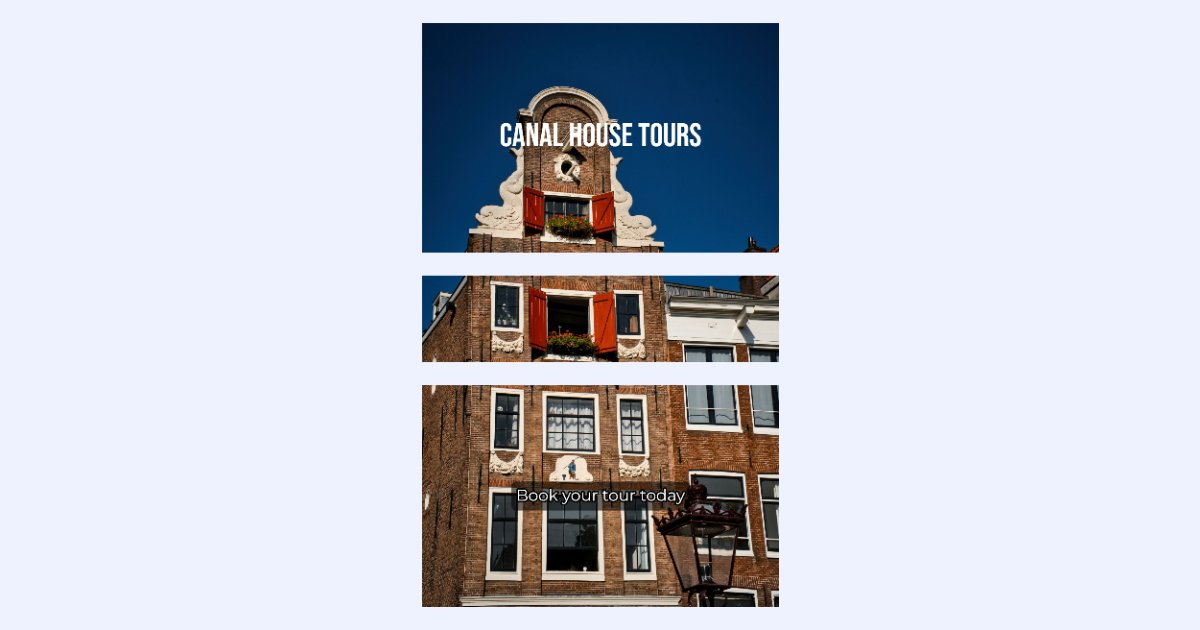
You've split a design into pieces, and now one piece needs a headline, another a price, another a "Book now". Going back to the design tool, editing, exporting and splitting again takes time.
The image splitter can put text on individual pieces. You write it, style it and place it on the piece you choose, and it's drawn into that piece's file only. Everything happens in your browser.
The 30-second answer
- Split your image in the image splitter.
- Choose Text, pick a piece, and click Add text.
- Type, style and drag the text into place, then download as usual.
When this helps
- Email blocks: a different headline or call to action on each block, for example for a weekly campaign that reuses the same layout.
- Product crops: a price or "New" on each product cut out of one photo.
- Social posts: a caption on one tile of a grid.
Step 1: split first
Split the image as usual: with the Grid, by splitting a region, or with Crops. For this example we used the email split from how to split a long email design into image blocks: a 1200 px wide photo cut into three blocks.
Step 2: choose Text and a piece
Click Text at the top of the side panel. The pieces appear as buttons above the picture: 1, 2, 3 and so on. Click the piece you want, and it's shown on its own, large enough to work on comfortably.
Pieces that already have text are marked with a T, and the Regions list shows a Text label next to them.
Step 3: add, style and place the text
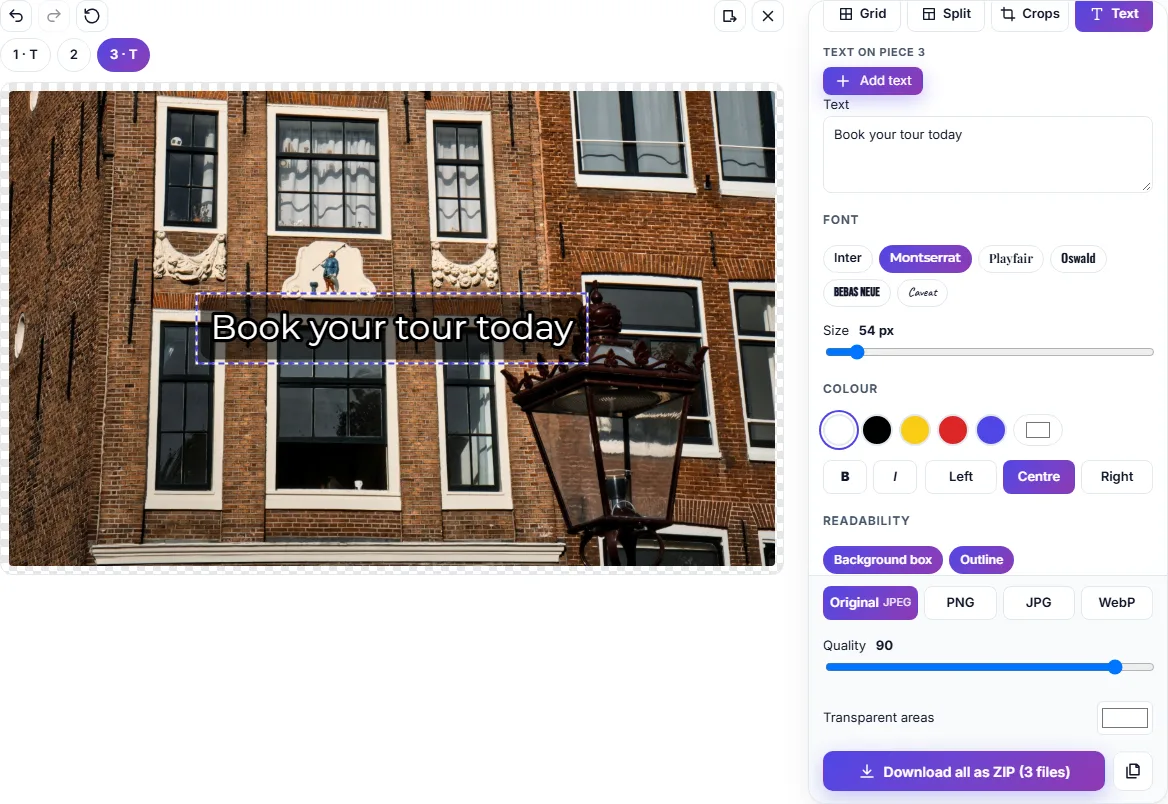
Click Add text and type in the Text box. Then style it:
- Font: Inter, Montserrat, Playfair, Oswald, Bebas Neue or Caveat.
- Size, in the piece's own pixels.
- Colour: white, black, yellow, red, blue, or any colour you pick.
- Bold, italic, and left, centre or right alignment.
- Readability: a Background box (with its own colour and opacity) or an Outline keeps the text readable on a busy photo.
Drag the text to move it, or nudge it with the arrow keys. Duplicate copies it; Delete text removes it. Add as many texts to a piece as you need, and undo any change.
Step 4: download
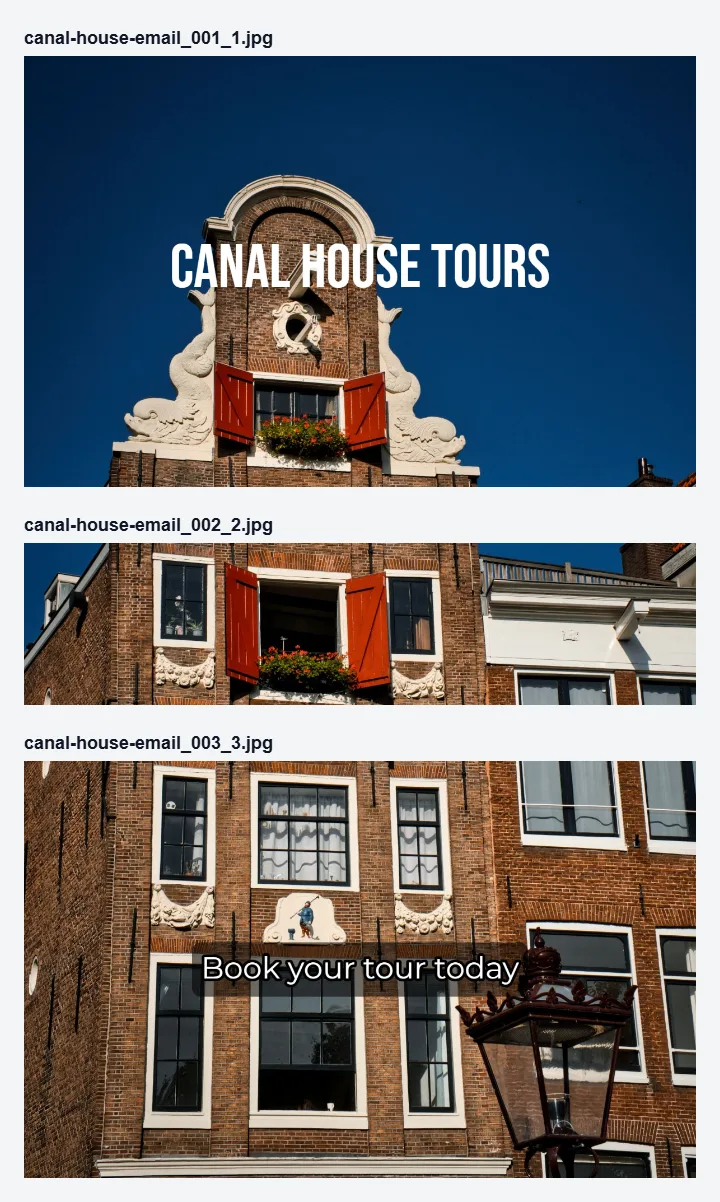
Download as usual, all together as a ZIP or one by one. Each piece's text is drawn into that piece's file only. The other pieces stay exactly as they were:
Limits worth knowing
- Text stays inside its piece. If some text runs past the edge, the panel warns you that it will be cut off, so you can drag it back inside.
- Text moves with its piece. If you move a crop later, its text comes along.
- Circle crops are previewed round, so you can see exactly what will be cut off.
- Fonts have to load. If a font can't be loaded, for example without an internet connection, the download stops with a message instead of quietly using a different font.
- Saved layouts don't include text yet. A saved layout keeps the grid and crops, so you add the text again on the next design.
Text in emails: keep it readable
Text drawn into an image is part of the picture. Some inboxes hide images until the reader allows them, and screen readers can't read text in images. So give each image alt text that says what it says, and keep the key message, such as the offer, as live text in your email too. More in email image sizes.
For a single picture rather than split pieces, the add text to image tool has the same text options.
Summary
- Split your image, then click Text and choose a piece.
- Add text, choose the font, size and colour, and add a box or outline for readability.
- Drag it into place and download: each piece's text goes into that piece's file only.