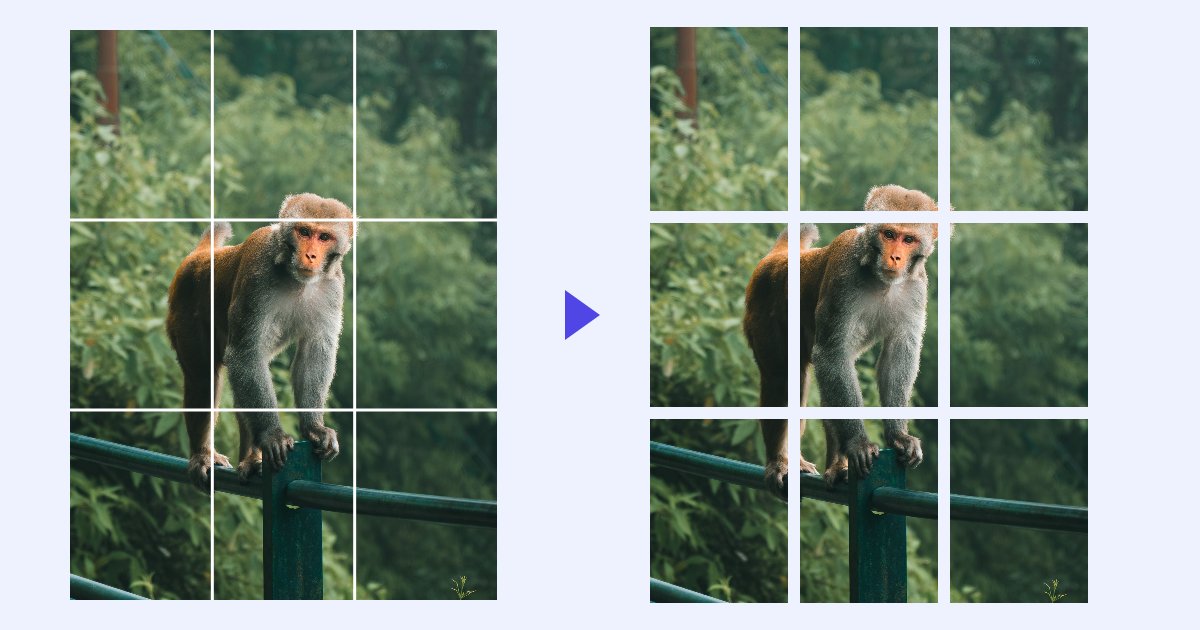
Maybe you want a wide banner cut into three columns, a tall poster cut into rows for printing, or a square photo cut into four tiles. Whatever the reason, you want the pieces the same size, in the right order, and as sharp as the original.
This guide shows how, using the image splitter on this site. All the sizes and file names below come from real test runs.
The 30-second answer
- Open the image splitter and add your image.
- Under Grid, click a ready-made split (2 rows, 3 rows, 4 rows, 2 columns, 2 × 2 or 3 × 3), or type any number of Rows and Columns and click Apply grid.
- Click Download all as ZIP.
That's it. Your image never leaves your device: the splitting happens in your browser.
Rows, columns or a grid: which one?
- Rows cut across: the pieces are stacked top to bottom. Good for tall images such as posters, long screenshots and email designs.
- Columns cut from top to bottom: the pieces sit side by side. Good for wide banners and panoramas.
- A grid (rows and columns together) cuts the image into tiles, like a chessboard. 3 × 3 is the classic for an Instagram profile grid. For a ready-made page for that, see split an image into a grid.
You can have up to 100 rows and 100 columns, as long as each piece is at least 1 pixel.
Step by step
- Add your image. Drag it onto the page or click to choose a file. PNG, JPG, WebP and GIF work, up to 50 MB and 30,000 pixels on the longest side.
- Choose the split. The Grid panel has buttons for the most common splits. For anything else, type the number of Rows and Columns and click Apply grid. The lines appear on the image straight away.
- Check the sizes. The Regions list shows every piece with its exact size in pixels and the number it will have in the download.
- Choose the format (optional). Original keeps the format of your image. PNG is lossless, so every pixel stays exactly as it was. JPG and WebP make smaller files; you can set the quality.
- Download. Download all as ZIP gives you one file with every piece. The button next to it downloads the pieces as separate files instead.
When the size doesn't divide evenly
Pixels can't be cut in half. If your image is 1,000 pixels tall and you ask for 3 rows, the pieces can't each be 333.33 pixels.
Here's what the splitter does: it shares the pixels out as evenly as possible and gives the leftover pixels to the first pieces, one each. In our tests:
| Image | Split | Pieces |
|---|---|---|
| 1200 × 1000 | 3 rows | 1200 × 334, 1200 × 333, 1200 × 333 |
| 1000 × 400 | 3 columns | 334 × 400, 333 × 400, 333 × 400 |
| 1080 × 1080 | 2 × 2 | four pieces of 540 × 540 |
| 1913 × 2551 | 3 × 3 | widths 638, 638, 637; heights 851, 850, 850 |
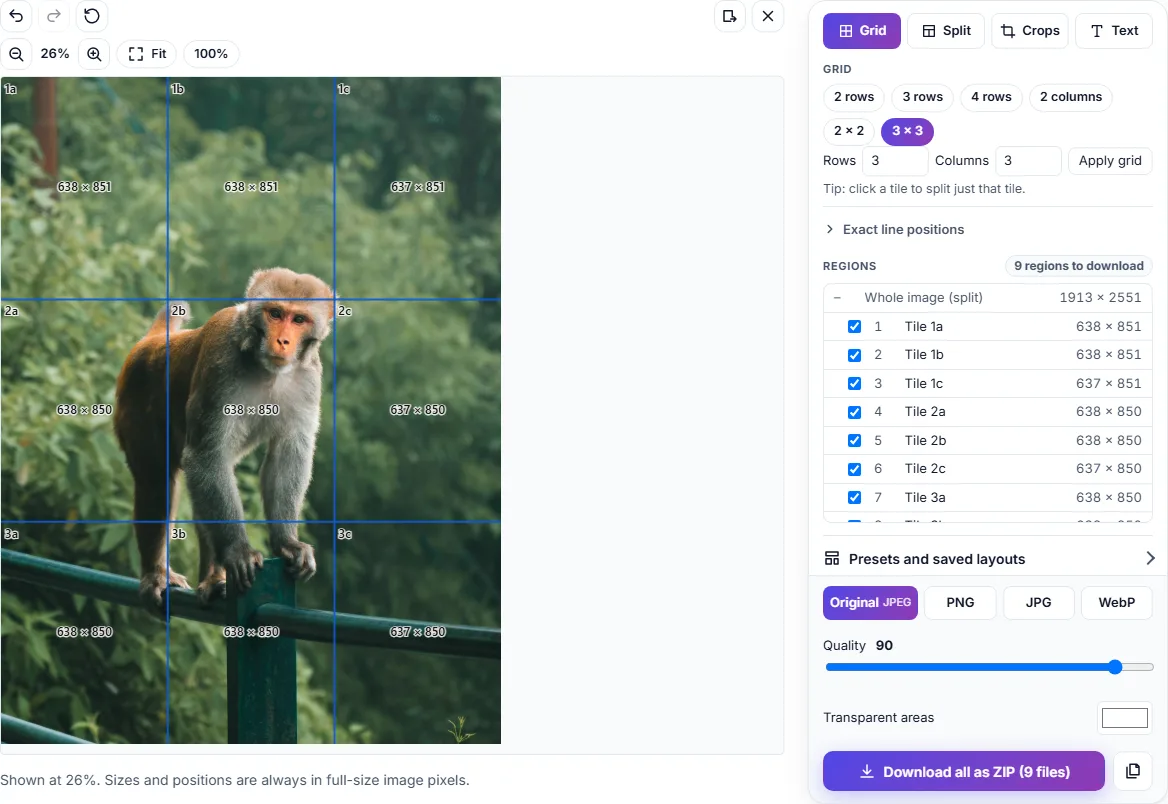
A difference of one pixel is invisible. The pieces still add up to the whole image exactly, so no pixels are lost or repeated, and the pieces fit back together without a seam.
Need every piece exactly the same size? Pick a number that divides your image's size, or resize the image first with the image resizer. For example, at 1200 pixels wide, 3 columns gives three pieces of exactly 400 pixels.
Changing just one piece
Sometimes one piece needs splitting further, for example the middle row of a poster into two halves.
- Click that piece on the image.
- In the box that appears under Grid, set the Rows and Columns for that piece only and click Split tile.
The other pieces stay as they are. You can also drag any line on the image to move it, or type exact positions under Exact line positions. Merge puts a split piece back together.
Don't need a piece? Untick it in the Regions list and it's left out of the download.
The file names
Each file starts with your image's name and a number in reading order: left to right, then top to bottom. By default the name also says where the piece came from:
| Split of | File names |
|---|---|
| summer-sale.jpg into 3 rows | summer-sale_001_1.jpg, summer-sale_002_2.jpg, summer-sale_003_3.jpg |
| banner.png into 3 columns | banner_001_a.png, banner_002_b.png, banner_003_c.png |
| photo.png into 2 × 2 | photo_001_1a.png, photo_002_1b.png, photo_003_2a.png, photo_004_2b.png |
Rows are numbers and columns are letters, like a spreadsheet: 2b is row 2, column b. If you split the second row into two columns, those pieces become 2a and 2b.
Because the number comes first, the files always sort in the right order in any folder. Prefer short names? Open Files & options and choose Number only (summer-sale_001.jpg), or type your own File name prefix. The ZIP is named after the prefix too, for example summer-sale.zip.
Common problems
One piece is a pixel bigger than the others. That's the leftover pixel explained above. Resize the image to a size that divides evenly if it matters.
The pieces look blurry. The splitter doesn't shrink or enlarge anything: each piece has the same pixels as the original. If the original is small, the pieces will be too. Save as PNG for an exact copy.
The JPG pieces are bigger in total than the original. Each piece is saved as its own file, and every file has a little overhead. Lower the quality slightly or use WebP for smaller files.
I need the pieces in a different order. The numbers always follow reading order, so the pieces are easy to put back together. If you only need some of them, untick the others in the Regions list; the remaining files are numbered 1, 2, 3… without gaps.
Downloading separate files only gives me one file. Your browser may ask once for permission to download several files. Allow it, or use Download all as ZIP.
Summary
- Choose rows, columns or a grid under Grid, or type your own numbers.
- Uneven sizes are shared out fairly: the first pieces get the leftover pixels, one each.
- Click a single piece to split only that one.
- Files are numbered in reading order, so they always sort correctly.