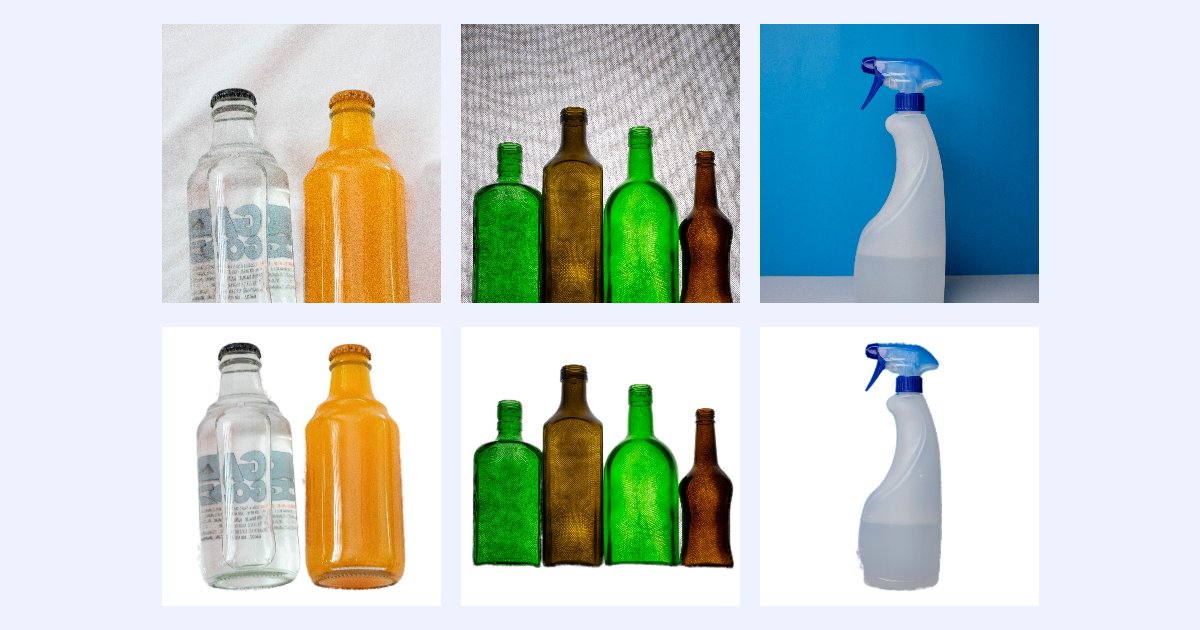
A plain white background makes products look clean and makes a shop page look consistent. Many marketplaces ask for it on the main photo. But most product photos are taken on a table, a wall or a piece of cloth.
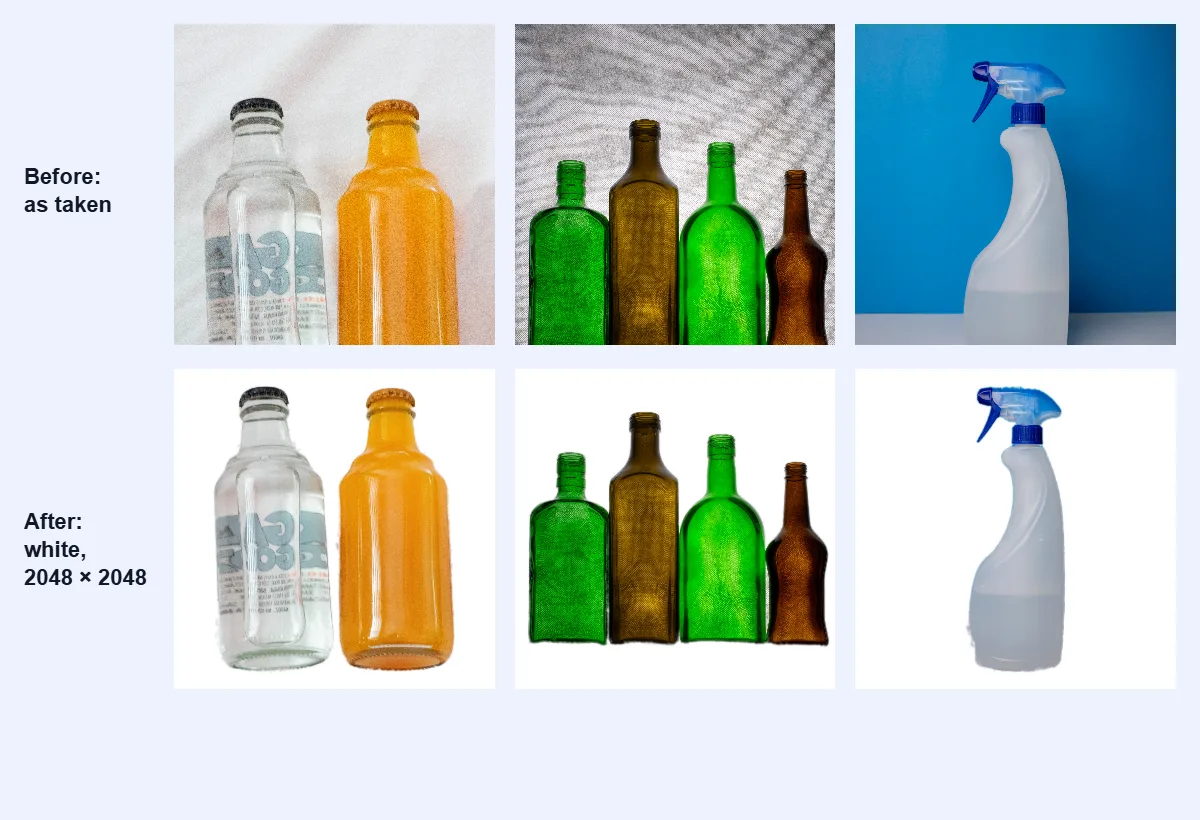
This guide takes three real product photos from "as taken" to 2048 × 2048 squares on pure white, each under 500 KB, using free tools that run in your browser. Your photos aren't uploaded anywhere. Every size and file name below comes from that test.
The 30-second answer
- Open the background remover, add your photos, choose White and JPG, and click the remove button (it counts your photos, for example Remove 3 backgrounds).
- If bits of background are left, or parts of the product are missing, use Removal strength or Touch up.
- Crop each product with a little space around it in the crop tool.
- In the resizer, make them all 2048 × 2048 with Fit inside and a White background, and set a Max file size.
Step 1: check what your shop asks for
"White background" usually means pure white: red, green and blue all at 255, or #FFFFFF. Beyond that, every platform has its own rules for size, shape and how much of the picture the product should fill. Check your platform's own help pages; rules differ and change.
For example, Shopify's help page Product media types (checked 21 October 2026) says that for square images "a size of 2048 x 2048 px usually displays best", that images can be up to 5000 × 5000 px (25 megapixels) and under 20 MB, and that you should use a consistent aspect ratio so products show at the same size on collection pages. That's the size we use here.
Step 2: remove the background, on white
Open the background remover and add your photos: up to 20 at once. Then:
- Under Background, choose White.
- Under Save as, choose JPG. A white background doesn't need transparency, and JPG keeps photos small.
Click Remove 3 backgrounds (the number is how many photos you added). The AI runs in your browser; the first time, it downloads its model (about 44 MB), which the browser then keeps for next time.
Our three photos came out like this:
| Photo | Original | On white |
|---|---|---|
| bottles-on-cloth.jpg | 3727 × 5592, 3.7 MB | 3727 × 5592, 2.6 MB |
| glass-bottles.jpg | 3840 × 5760, 4.5 MB | 3840 × 5760, 2.1 MB |
| spray-bottle.jpg | 3917 × 5875, 1.2 MB | 3917 × 5875, 489 KB |
The two bottle photos were clean straight away, even the clear glass bottle on white cloth.
Step 3: fix what the AI got wrong
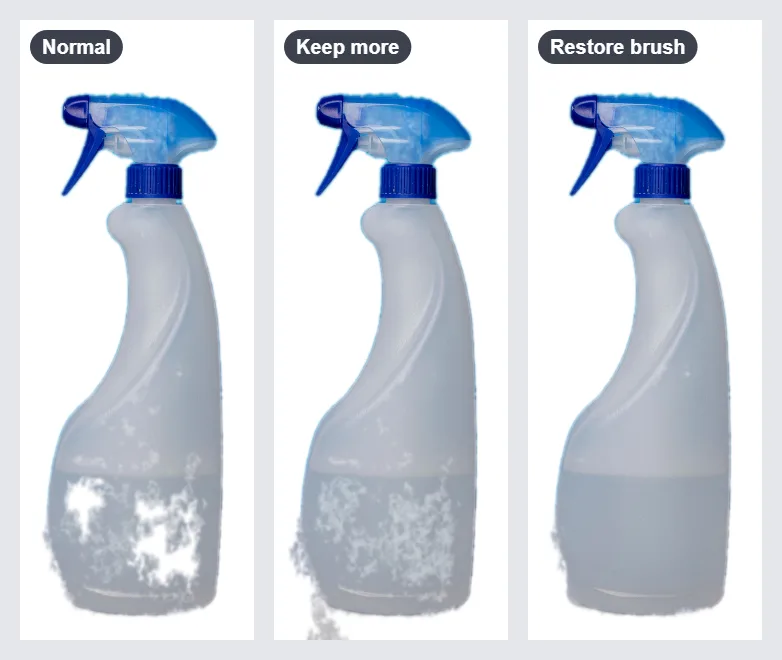
The white spray bottle on a white shelf was the hard one. The AI took parts of its pale lower half for background:
You have two tools for this:
- Removal strength. Move the slider towards Keep more when parts of the product are missing, or towards Remove more when bits of background are left. The picture updates by itself in about a second. In our test, Keep more filled most of the holes but left speckles.
- Touch up. Click Touch up under the result, choose Restore, and paint over the missing parts: the original photo comes back exactly where you paint. Erase does the opposite for leftover background. Click Apply touch-ups when you're done.
A few strokes of the Restore brush fixed the bottle completely. There's more about both tools in how to remove a background without uploading the photo.
Step 4: crop each product with a little space around it
The cut-out photos still have the original frame: lots of white around a product that may sit low or off-centre. Crop each one so the product fills most of the picture, with a small, even margin around it.
Open a photo in the crop tool, drag a rectangle around the product, and download it. We left a margin of about 6% of the product's size on each side. Our crops were 3434 × 3998, 3840 × 3258 and 1812 × 4346 pixels: three different shapes, which the next step fixes.
Step 5: make them all the same square size
Open the resizer and add the cropped photos. Then:
- Click the chain button between Width and Height to unlock it, and type 2048 in both.
- Under If the shape is different, choose Fit inside. The whole product is kept, and the space around it is filled.
- Choose White as the background.
- Under Max file size, choose 500 KB.
Click Resize 3 images and download. Here are the results:
| Photo | Cropped | Final | File size |
|---|---|---|---|
| bottles-on-cloth | 3434 × 3998 | 2048 × 2048 | 279 KB |
| glass-bottles | 3840 × 3258 | 2048 × 2048 | 447 KB |
| spray-bottle | 1812 × 4346 | 2048 × 2048 | 57.9 KB |
Tall products get white space at the sides and wide ones at the top and bottom, but every product sits centred and fills the square as much as its shape allows. We checked the corners and edges of all three files: every one was exactly 255, 255, 255, pure white.
Start from full-size photos. Fit inside never enlarges a picture. If a product is smaller than 2048 px after cropping, it stays at its own size in the middle of the square and looks small. For a small product photo, enlarge it first with the AI upscaler.
Checklist
- Background: pure white (
#FFFFFF), saved as JPG. - Nothing missing from the product, and no leftover background: check each photo at full size.
- The product fills most of the frame, with an even margin.
- Every photo the same shape and size (we used 2048 × 2048).
- Every file under your platform's limit (ours were all under 500 KB).
- The rules on your platform's own help pages checked.
Questions
Is the white really pure white?
Yes. The White background is #FFFFFF, and in our test the edges of every final JPG measured exactly 255, 255, 255.
Can I use a colour other than white? Yes. Choose Colour in the background remover and pick any colour, or Transparent and save as PNG or WebP.
How many photos can I do at once? Up to 20 in the background remover and 20 in the resizer.
Are my product photos uploaded? No. The AI runs in your browser, and the photos never leave your device.