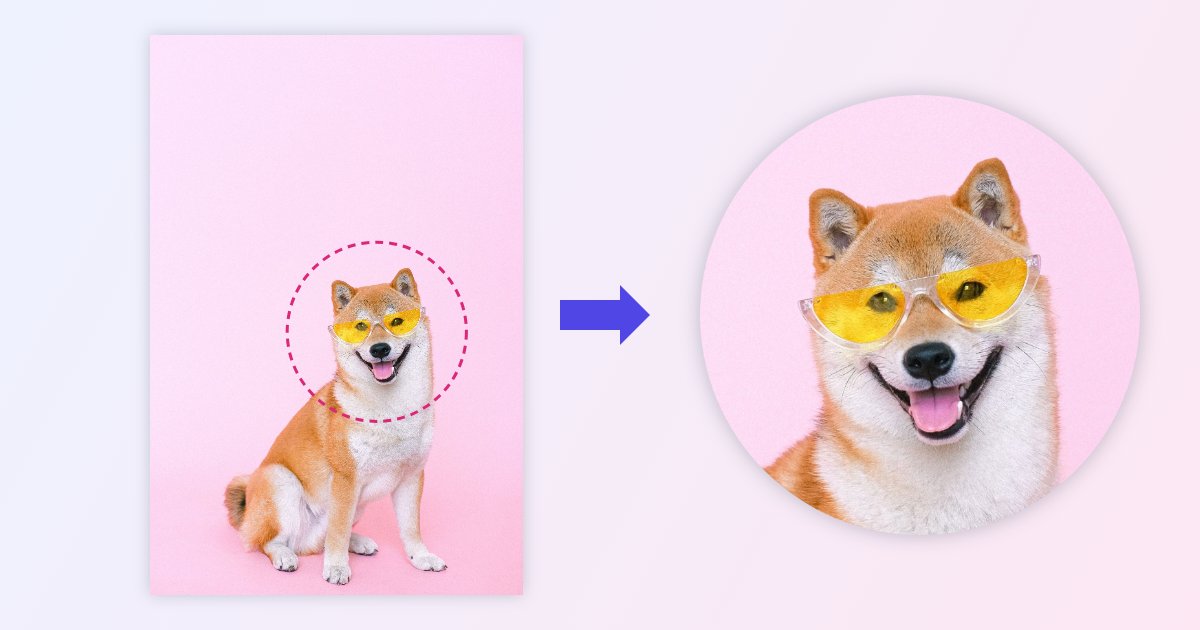
A round photo looks good on a slide, a web page, an email signature or a card. To make it sit nicely on any background, you need a PNG with transparent corners: the circle shows, and everything around it doesn't.
This guide shows how to make one for free with the image crop tool. It runs in your browser, on a phone too, and the photo isn't uploaded anywhere. The sizes and files you'll see come from a real test.
The quick answer
- Open the image splitter and add your photo.
- Click Crops and choose Circle.
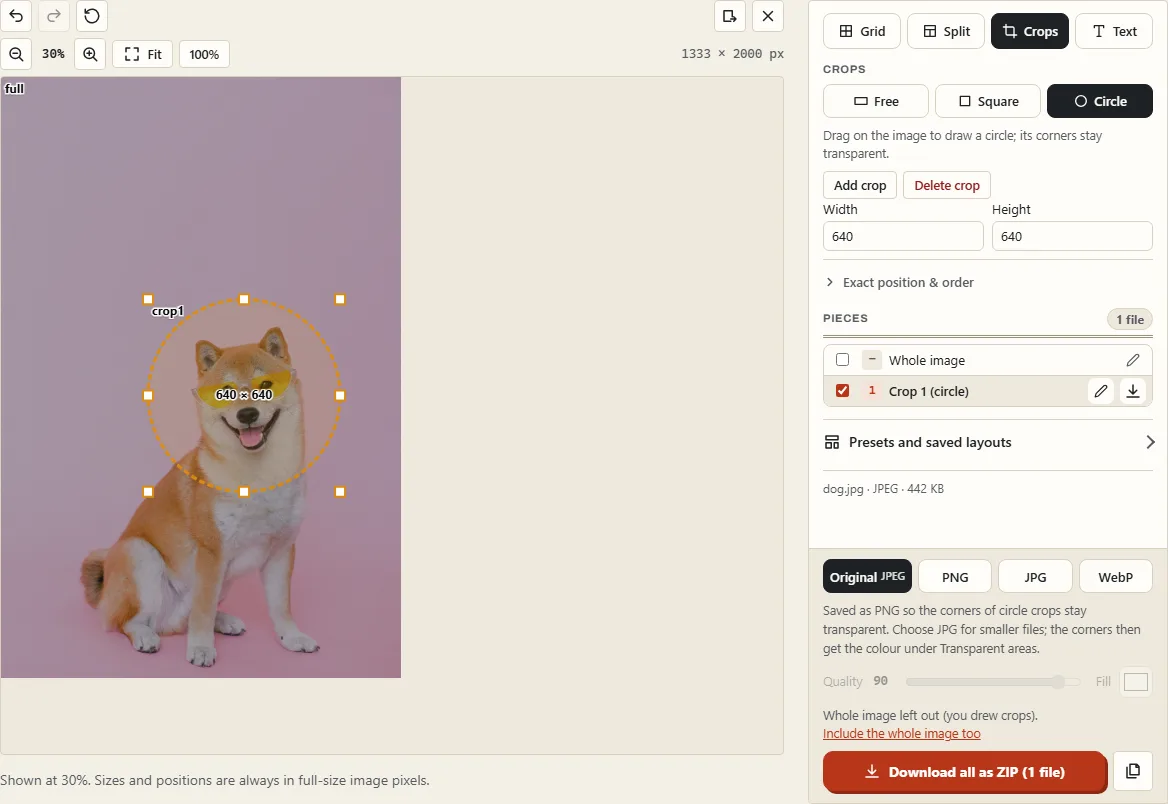
- Drag on the photo to draw the circle, and move it where you want.
- Click Download all as ZIP. The circle is saved as a PNG with transparent corners.
Step 1: Open the photo and choose the circle
Open the image splitter and drop your photo on it, or click Choose image. It takes JPEG, PNG, WebP and GIF.
In the panel on the right, click Crops, then Circle just below it. The other two shapes are Free (any rectangle) and Square.
Step 2: Draw the circle
Drag on the photo: a circle follows the mouse and never leaves the picture. Then you can:
- Move it by dragging, or with the arrow keys (1 pixel per press, 10 with Shift).
- Resize it by pulling the handles on the corners or sides. It stays a circle, never an oval.
- Place it to the pixel by typing Width and Height in the panel, and X and Y under Exact position & order. For a circle, the width and height are always equal.
On a phone, tap Add crop, then drag the circle that appears.
For our test we used a 1333 × 2000 px photo of a dog in sunglasses and drew a 640 × 640 px circle around its head:
Need several circles from the same photo, such as each face in a group shot? Draw as many as you like: each one downloads as a separate file. Cropping several parts from one image shows that in more detail.
Step 3: Download the PNG
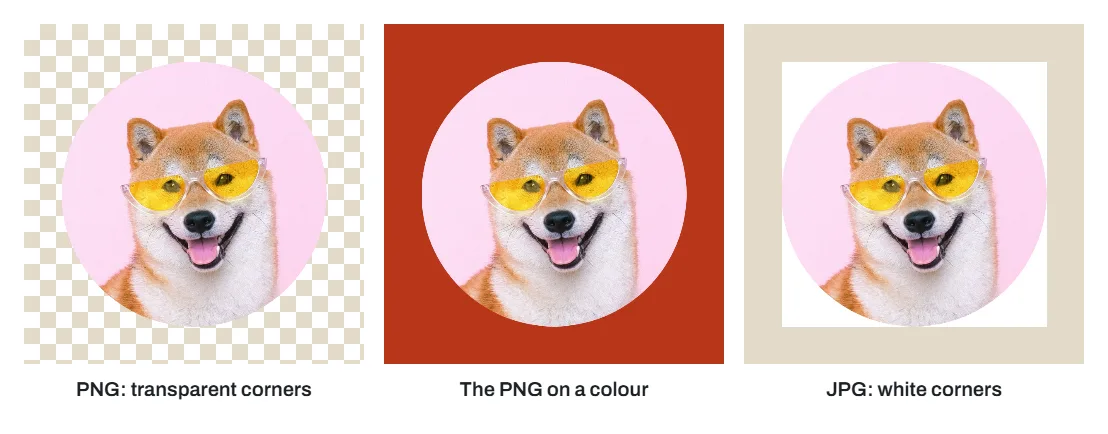
Click Download all as ZIP, or download just that file with the arrow on its row under Pieces. Even if your photo is a JPG, the circle is saved as a PNG, because JPG can't have transparent corners. The tool tells you so under the formats:
Saved as PNG so the corners of circle crops stay transparent.
In our test the result was dog_001_crop1.png: 640 × 640 px and 481 KB.
What if I'd rather have JPG or WebP?
- WebP keeps the corners transparent too and usually gives smaller files. It's a good choice for websites.
- JPG has no transparency: the corners are filled with the colour under Transparent areas (white unless you change it). That works if you'll place the circle on a background of that same colour. Our circle was 84 KB as a JPG.
For a profile picture? A square is enough
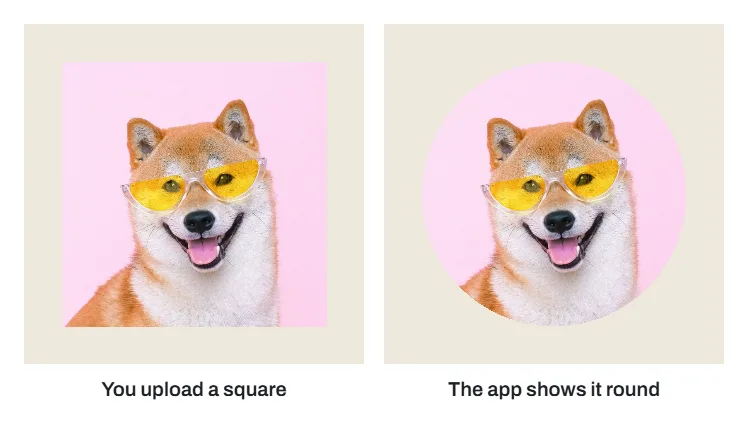
WhatsApp, Instagram and most social networks already show profile pictures as circles: you upload an image and the app crops it round. So for a profile picture you don't need a round PNG. You need a well-centred square, so the app doesn't cut off the face.
Choose Square instead of Circle, draw the crop with the face in the middle and download it. If you've already drawn a circle, select it and click Square: it becomes a square of the same size in the same place.
What about Word, PowerPoint or Canva?
These programs can also show a picture in a circle with their own crop feature, but the result stays inside that document or design. A round PNG is a file you can use anywhere: in Word, PowerPoint, Canva, Google Slides, on your website or in an email signature. Insert it like any other picture, and the corners stay transparent.
Tips for a good circle crop
- Leave some room around the face. The circle cuts off the corners, so anything near the edges of the square is lost.
- Start with a large photo. A circle of 500 px or more is usually enough for slides, websites and email signatures. If your photo is small, you can make it bigger with AI before cropping.
- Want the photo's background gone too? First remove the background and save the result as PNG, then crop it into a circle.
Frequently asked questions
Is it free? Yes. No sign-up, no watermark and no usage limit.
Is my photo uploaded anywhere? No. The photo is opened and cropped in your browser, on your device.
Can I make an oval? No. The Circle shape is always round. For a rectangular crop, use Free.
How big will the circle be? As big as you draw it, in pixels of the original photo, with no loss of quality. The file is a square the size of the circle, with transparent corners.
Does it work on a phone? Yes. Open the page in your phone's browser, tap Add crop and drag the circle with your finger.