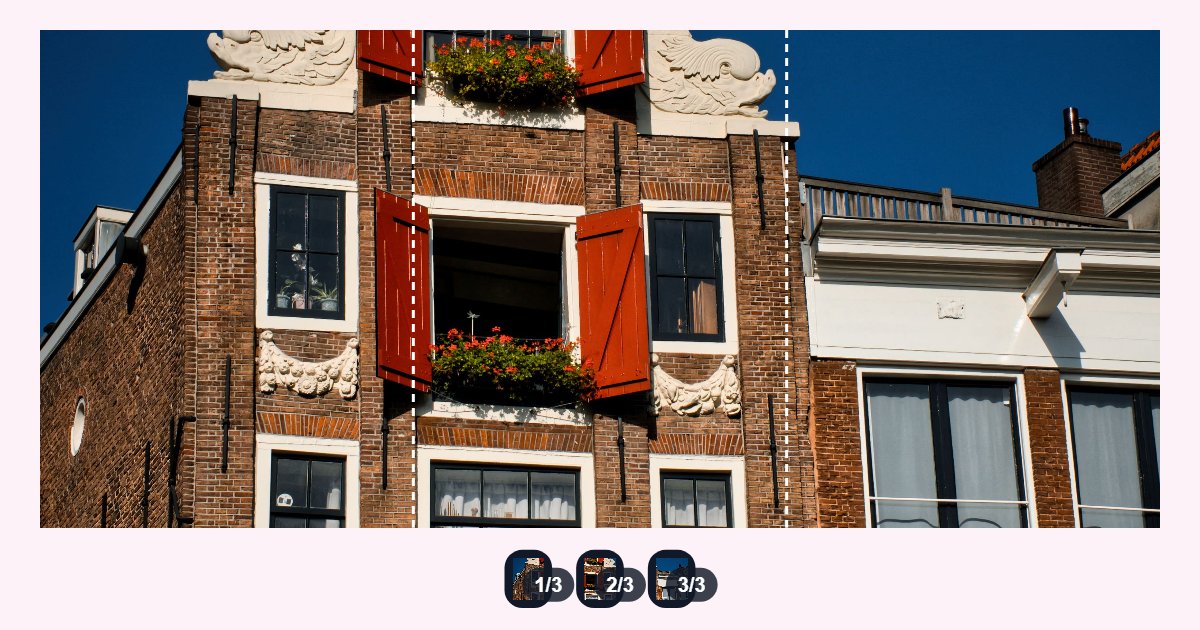
A panoramic carousel is one wide photo split into several slides that appear one after another as you swipe. With 3 slides, each swipe reveals another third of the picture, and together they read as one continuous photo.
For the slides to join up without gaps, each one has to be exactly a shape Instagram keeps as it is. This guide shows how to do it for free in your browser: the photo isn't uploaded anywhere. The sizes and file names come from a real test.
The quick answer
- In the image resizer, make your photo 3240 × 1440 pixels with Crop to fill.
- Open it in the image splitter, set Rows to 1 and Columns to 3, and click Apply grid.
- Click Download all as ZIP and add the three parts to one carousel post, in order: a, b, c.
What size each slide needs
Instagram's Help Centre, in its article on photo resolution (checked 21 October 2026), says photos are shared at up to 1080 pixels wide and keep their resolution when their aspect ratio is between 1.91:1 and 3:4: that is, 1080 pixels wide and between 566 and 1440 pixels tall. A photo outside that range gets cropped.
The tallest shape that's kept is 3:4, 1080 × 1440 px, and it takes up the most room in the feed. Three of those side by side add up to:
| Slides | Each slide | Whole picture |
|---|---|---|
| 3, at 3:4 (the tallest) | 1080 × 1440 px | 3240 × 1440 px |
| 3, at 4:5 | 1080 × 1350 px | 3240 × 1350 px |
| 3, square | 1080 × 1080 px | 3240 × 1080 px |
This guide uses 3:4. For another shape, change the height and follow the same steps. Social media image sizes lists the other platforms.
Step 1: Make the photo 3240 × 1440
Open the image resizer and add your photo. Then:
- Click the chain button between Width and Height to unlock the proportions.
- Type 3240 for Width and 1440 for Height.
- Leave Crop to fill selected: the tool trims the edges without stretching the photo. To choose which strip is kept, drag the frame in the preview.
- Click the resize button and download the result.
In our test we started from a 3537 × 5318 px upright photo of a house in Amsterdam. The result, canal-house-3240x1440.jpg, is a 762 KB panoramic strip of the house front. So upright photos work too: only a horizontal strip is kept.
Step 2: Split it into 3 columns
Open the photo in the image splitter. In the Grid panel, type 1 for Rows and 3 for Columns, and click Apply grid. Each of the three parts is labelled exactly 1080 × 1440 px:
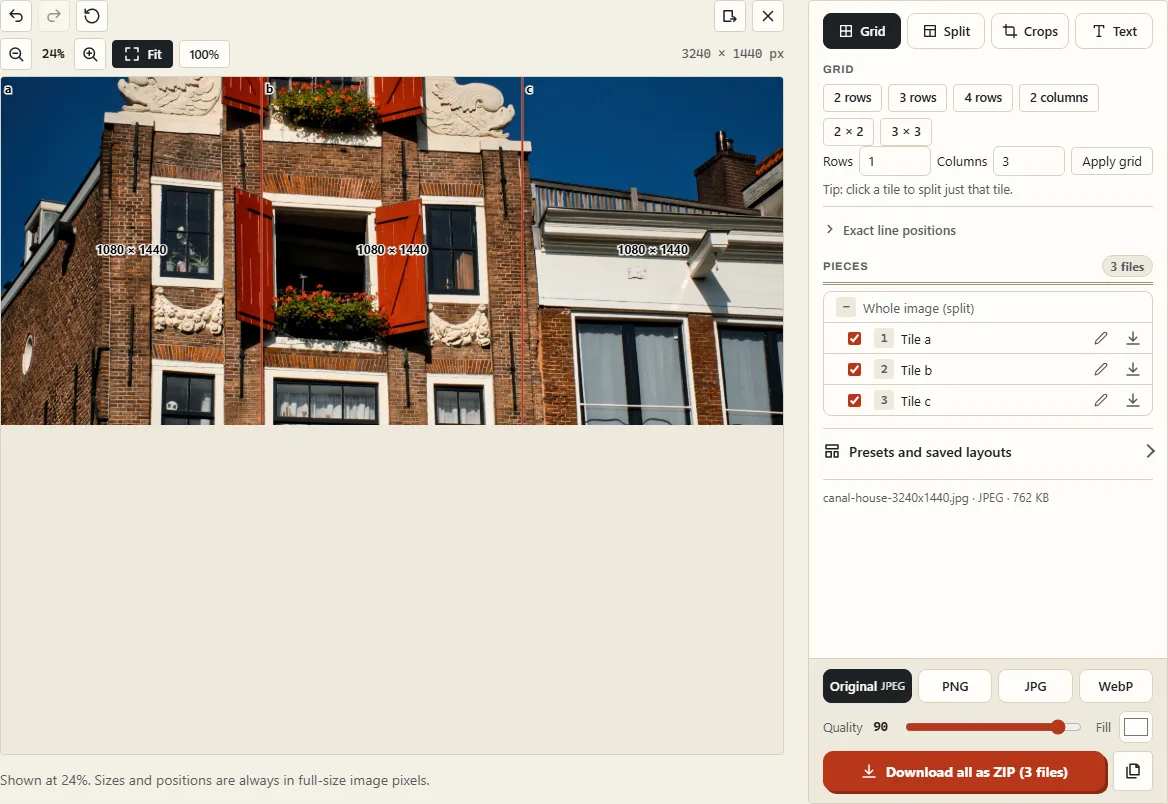
Click Download all as ZIP. Inside are the three parts, numbered in order:
canal-house-3240x1440_001_a.jpg(397 KB)canal-house-3240x1440_002_b.jpg(399 KB)canal-house-3240x1440_003_c.jpg(235 KB)
Each part keeps the original resolution: splitting loses no quality.
Step 3: Post them in order
In Instagram, start a new post, choose several photos and select them in order: a, b, c. Then, as you swipe, the picture carries on from one slide to the next:
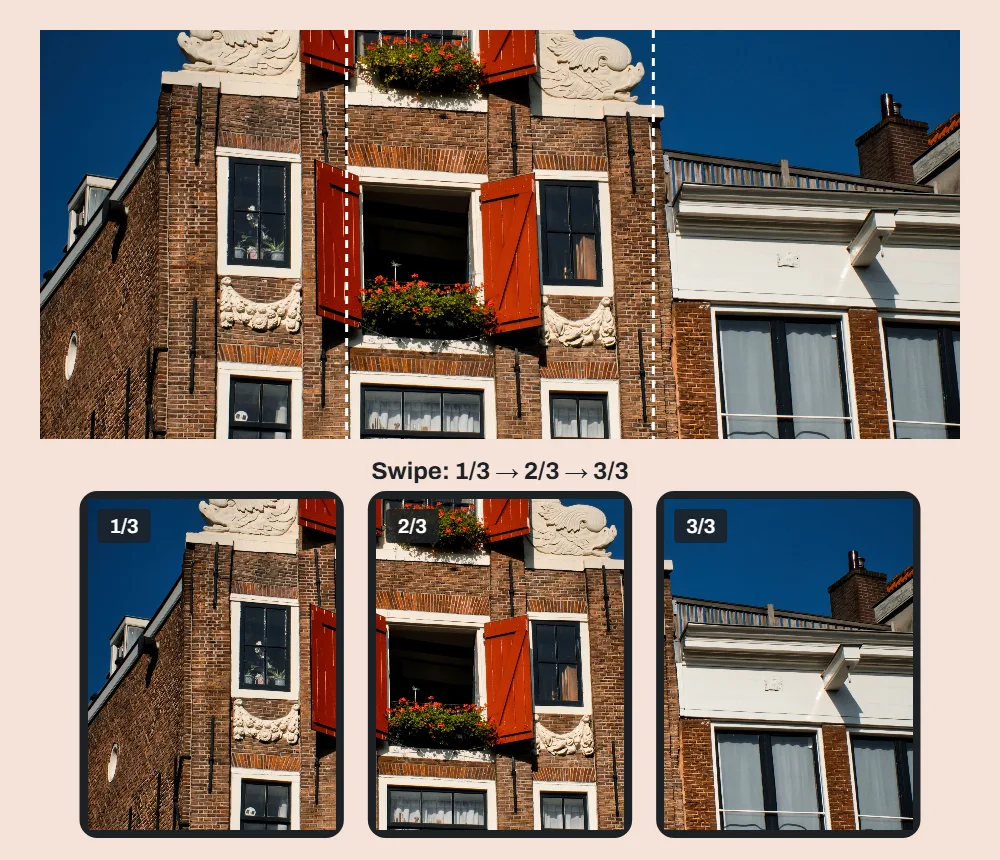
Before you share, check the preview: all three slides should show in full, with no strips cut off.
What about the profile grid?
If you want the three parts to form one row of your profile instead of a carousel, post them as three separate posts in reverse order: c first, then b, then a. The profile shows the newest post first, so a ends up on the left. For a full 3 × 3 grid, see how to make a 3 × 3 Instagram grid from one photo.
Frequently asked questions
Can I split the picture into 2 or 4 slides? Yes. The method is the same: the total width is 1080 × the number of slides. For 4 slides at 3:4, make the photo 4320 × 1440 and use 4 columns.
Why does Instagram crop my slides? Their shape is probably outside 1.91:1 to 3:4. Check the size shown on each part in the splitter: it should be 1080 wide and between 566 and 1440 tall.
Can I do it on my phone? Yes. Both tools work in your phone's browser.
Are my photos uploaded? No. The photo is cropped and split in your browser, on your device.