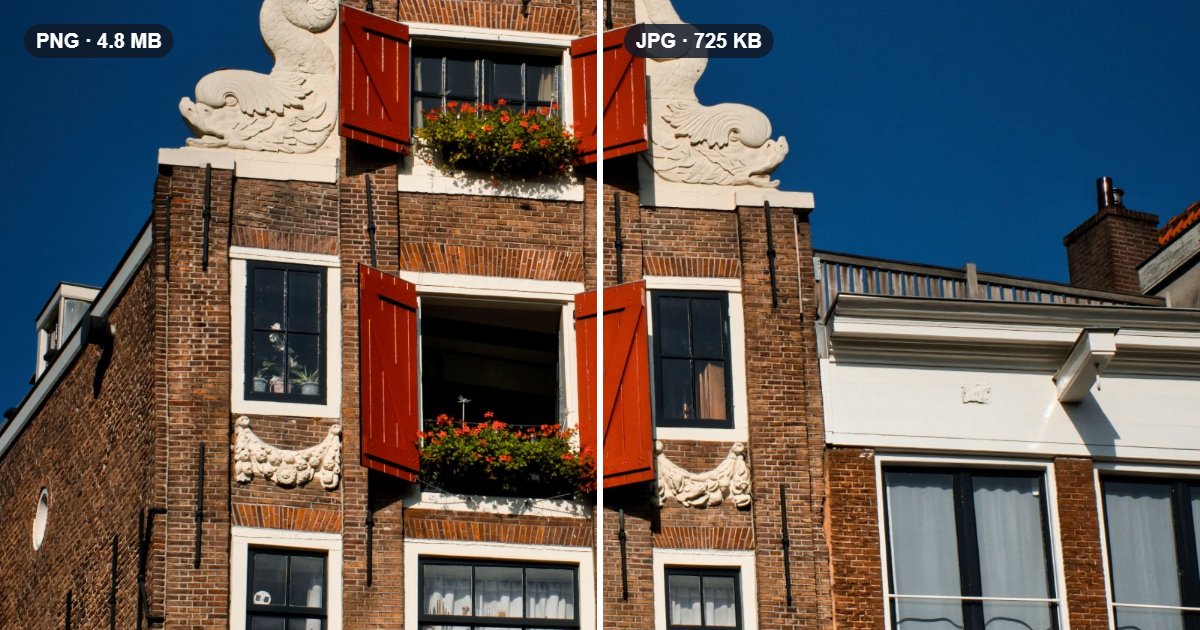
PNG files can be huge. A photo saved as PNG is often several times bigger than the same photo as JPG, which makes pages slow, emails heavy and upload forms complain. Converting to JPG is the usual fix.
But PNG and JPG work differently, and the conversion changes more than the file name. This guide shows what changes, what doesn't, and when you should keep the PNG, with numbers measured using the image converter.
The short answer
- Photos: convert to JPG. You'll save a lot and won't see a difference.
- Screenshots, logos and text: keep PNG (or try WebP), unless the file size really matters.
- Anything with a transparent background: don't use JPG. It can't store transparency.
What changes
The file size
PNG stores every pixel exactly. That's ideal for sharp graphics, but photos have millions of slightly different colours, which PNG can't pack well. JPG is designed for photos: it drops detail the eye barely notices.
We converted two images at the converter's default JPG quality (85):
| Image | PNG | JPG | Smaller by |
|---|---|---|---|
| A photo, 1600 × 2406 px | 4.8 MB | 725 KB | about 85% |
| A screenshot of a web page, 1280 × 900 px | 150 KB | 74 KB | about half |
The photo shrank to about a seventh of its size. The screenshot also got smaller, but by much less, because PNG was already good at storing its large flat areas.
Sharp edges and text
JPG's compression works in small blocks, and it smooths fine detail. On photos that's invisible. On sharp edges, like text in a screenshot, it can leave a slight blur or faint marks next to the letters.
Here's a piece of the screenshot, enlarged four times:
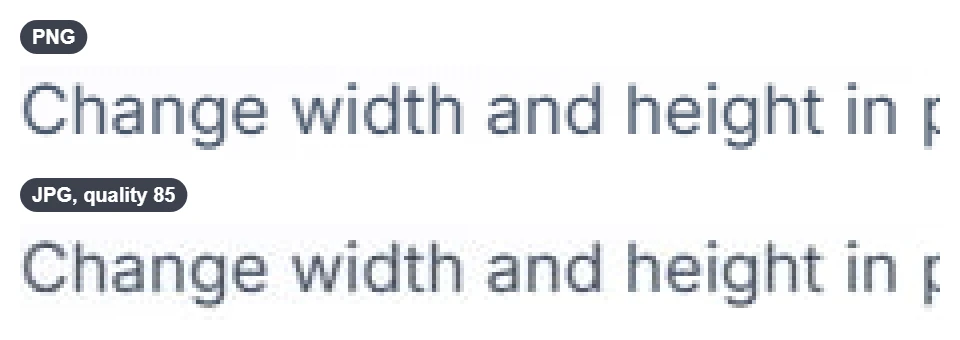
At quality 85 you have to zoom in to see it. At lower qualities, or after converting the same image several times, it becomes obvious. For screenshots, diagrams and logos, PNG is usually the better choice.
Transparency
JPG can't store transparent areas. When a PNG with a transparent background is converted, the transparent parts are filled with a colour: the converter lets you choose it under Transparent areas (white by default). If you need the background to stay transparent, use PNG or WebP. There's more in why a transparent image gets a black or white background.
What doesn't change
- The size in pixels. A 1600 × 2406 PNG becomes a 1600 × 2406 JPG.
- How the colours look. Colours are saved in standard sRGB, so they look the same in browsers and apps.
- Your original file. The converter makes a new file and never changes the one you added.
One more thing that changes, usually for the better: the converted file doesn't include camera details or location data (EXIF).
How to convert PNG to JPG
- Open the image converter and add your PNG files: up to 20 at once.
- Choose JPG.
- If your images have transparent areas, pick the colour that fills them under Transparent areas.
- Adjust the Quality if you like: 85 is a good balance; higher keeps more detail and makes bigger files.
- Click the convert button, check the size of each result, and download.
The converter works in your browser, so your images aren't uploaded anywhere.
When to try WebP instead
WebP is often smaller than JPG at a similar quality, and it keeps transparency. If your image goes on a website, WebP is usually the best of both. Some older apps and upload forms don't accept it, though; in that case JPG is the safe choice. See PNG, JPG or WebP: which format to use.
Questions
Will converting PNG to JPG lose quality? A little, because JPG is lossy. For photos at quality 85 or higher, you're very unlikely to notice. For text and sharp graphics, you may.
Can I convert JPG back to PNG to get the quality back? No. Converting back to PNG keeps the JPG's pixels exactly, including what JPG removed. The file just gets bigger.
Why did my JPG come out bigger than the PNG? That can happen with simple graphics: a few flat colours compress very well as PNG. The converter shows the real size of every file before you download, so you can keep whichever is smaller.
Is my image uploaded? No. The conversion happens in your browser, on your device.