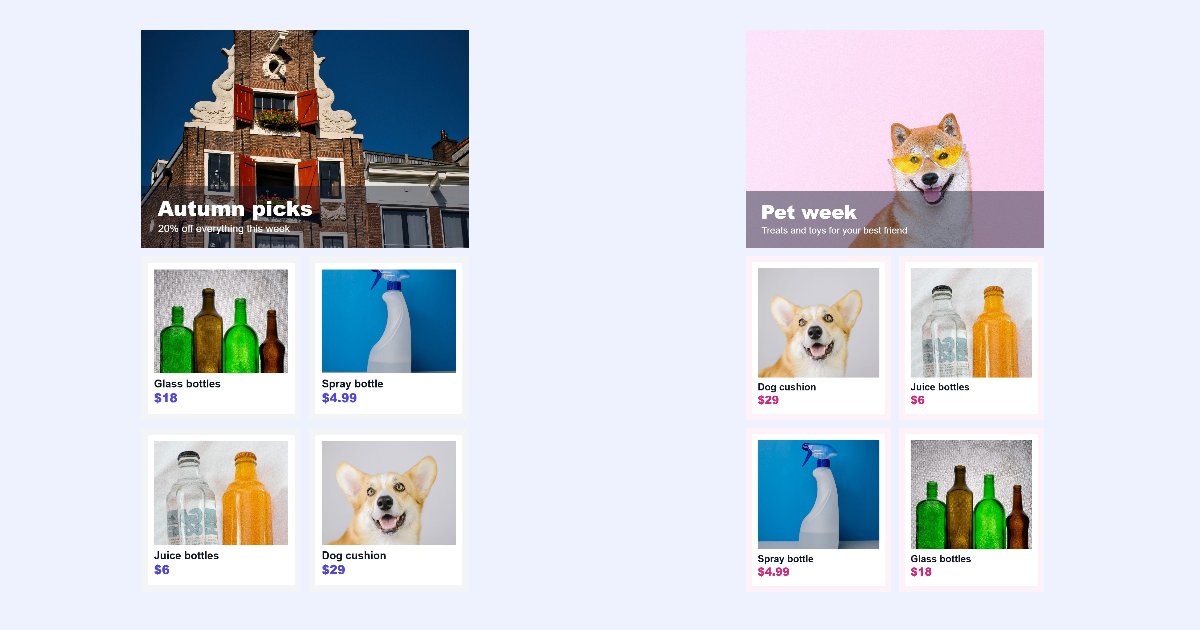
Most newsletters follow the same structure every week: a big hero image at the top, a few products below, maybe a footer. Only the pictures and words change. Yet many people slice every design from scratch, placing the same lines by hand each week.
The image splitter can remember your layout. Save it once, and next week it takes one click to slice the new design, even if it's a bit taller. This guide shows how, with two real weekly designs.
The 30-second answer
- Slice this week's design the way you want it.
- Open Presets and saved layouts, type a name under Your layouts, and click Save current layout.
- Next week, open the new design and click Apply next to your saved layout.
- Check the lines, and download.
Our example: two weekly designs
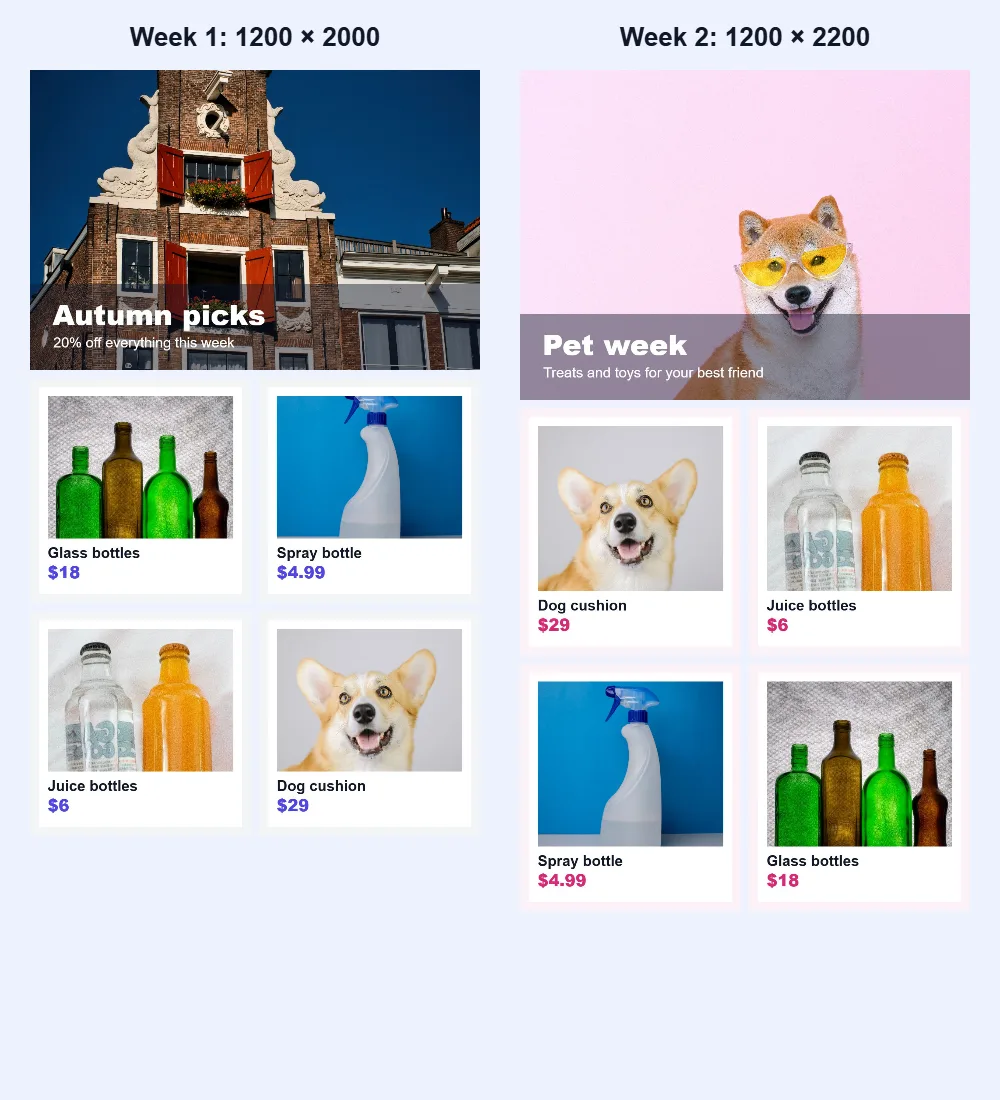
We made two newsletter designs with the same structure: a hero image on top and a 2 × 2 grid of products below. Week 2 is taller than week 1, because its hero image needed more room:
Step 1: slice the first design
Open the first design in the splitter. You can draw the lines yourself, but a preset is quicker. Under Presets and saved layouts, the Email presets include:
- 2, 3, 4 or 5 equal sections
- Header, body, footer
- Header, two columns, footer
- Hero and 2 × 2 products
Our design matches Hero and 2 × 2 products: the hero takes the top 40%, and the product grid the rest. One click gave us a 1200 × 800 hero and four 600 × 600 product blocks. If your sections are a bit different, drag the lines to the right place, or type their exact positions under Exact line positions.
Step 2: save the layout
Still in Presets and saved layouts, type a name under Your layouts, for example "Weekly newsletter", and click Save current layout. The splitter confirms it: Saved layout “Weekly newsletter”.
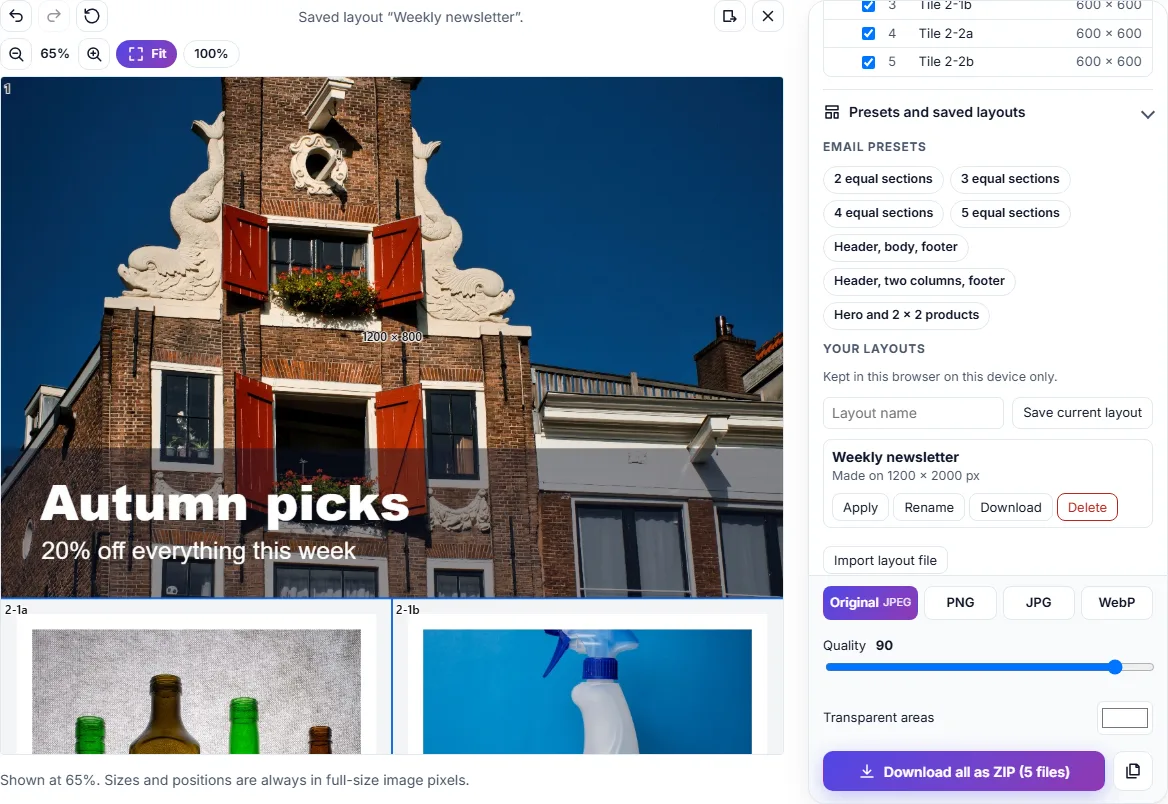
A saved layout stores the positions of the lines and crops, and the names of the regions. It never stores your image. It's kept in this browser on this device.
Download the pieces as usual. Ours were named in order, top to bottom, with their position in the layout:
newsletter-week-1_001_1.jpg: the heronewsletter-week-1_002_2-1a.jpgandnewsletter-week-1_003_2-1b.jpg: the first row of productsnewsletter-week-1_004_2-2a.jpgandnewsletter-week-1_005_2-2b.jpg: the second row
Step 3: apply it to next week's design
Next week, open the new design in the splitter, open Presets and saved layouts, and click Apply next to "Weekly newsletter".
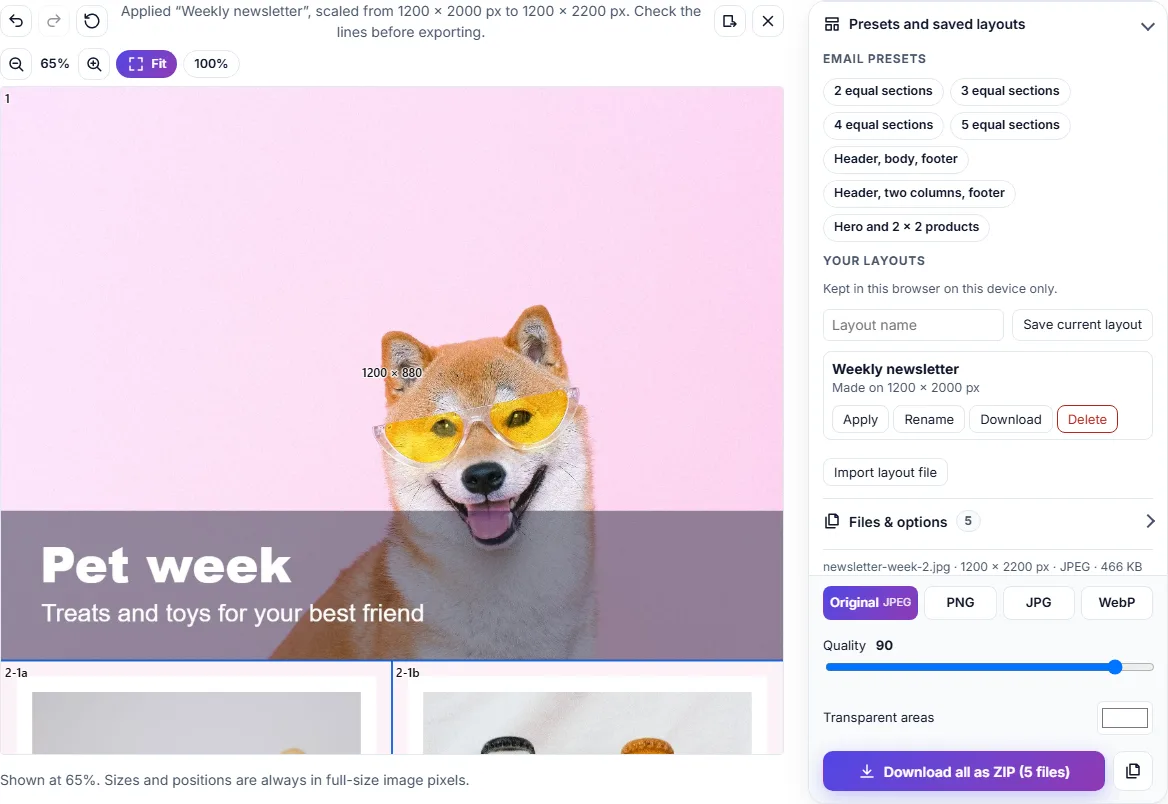
If the new design is a different size, the layout is scaled to fit, and the splitter tells you. Our week 2 design was 200 px taller:
Applied “Weekly newsletter”, scaled from 1200 × 2000 px to 1200 × 2200 px. Check the lines before exporting.
The hero became 1200 × 880 and the product blocks 600 × 660, the same proportions as week 1. Because week 2's design kept the same proportions, every line landed on the right edge. If your designs change shape in less regular ways, for example a taller hero but the same product rows, drag the lines that moved, and save the layout again if the new version is the one to keep.
Step 4: share the layout with a colleague
Saved layouts live in one browser. To use the same layout on another computer, or to give it to a teammate, click Download next to the layout. You get a small file, in our case Weekly_newsletter.layout.json, just 1,374 bytes. It holds the line positions and names, not the image.
On the other computer, click Import layout file in the same panel and choose the file. The layout appears under Your layouts, ready to apply.
Tips
- Name layouts by campaign, not by date: "Weekly newsletter", "Product launch", "Monthly digest". You'll reuse them many times.
- Keep the design's width the same every week, for example 1200 px. Then only the heights change, and scaling stays predictable.
- Check the lines before downloading. Scaling is proportional, so a section that grew on its own will need a nudge.
- Back up your layouts. If you clear your browser's data, saved layouts go with it. A downloaded layout file is a simple backup.
Questions
How many layouts can I save? Up to 50 in each browser. Delete or download old ones to make room.
Does a saved layout keep my images? No. It only stores line and crop positions, region names and the size of the image it was made on.
Can I use a layout on a design with a different width? Yes. It's scaled to the new size in both directions. Check the lines afterwards.
Is my design uploaded? No. The splitter works in your browser, and layouts are stored in your browser too.